
How to Open an XER File That Contains Multiple Projects

A single XER file can hold several projects. When one does, XER Reader shows the Project Options dialog before loading anything, and each project is handled separately.
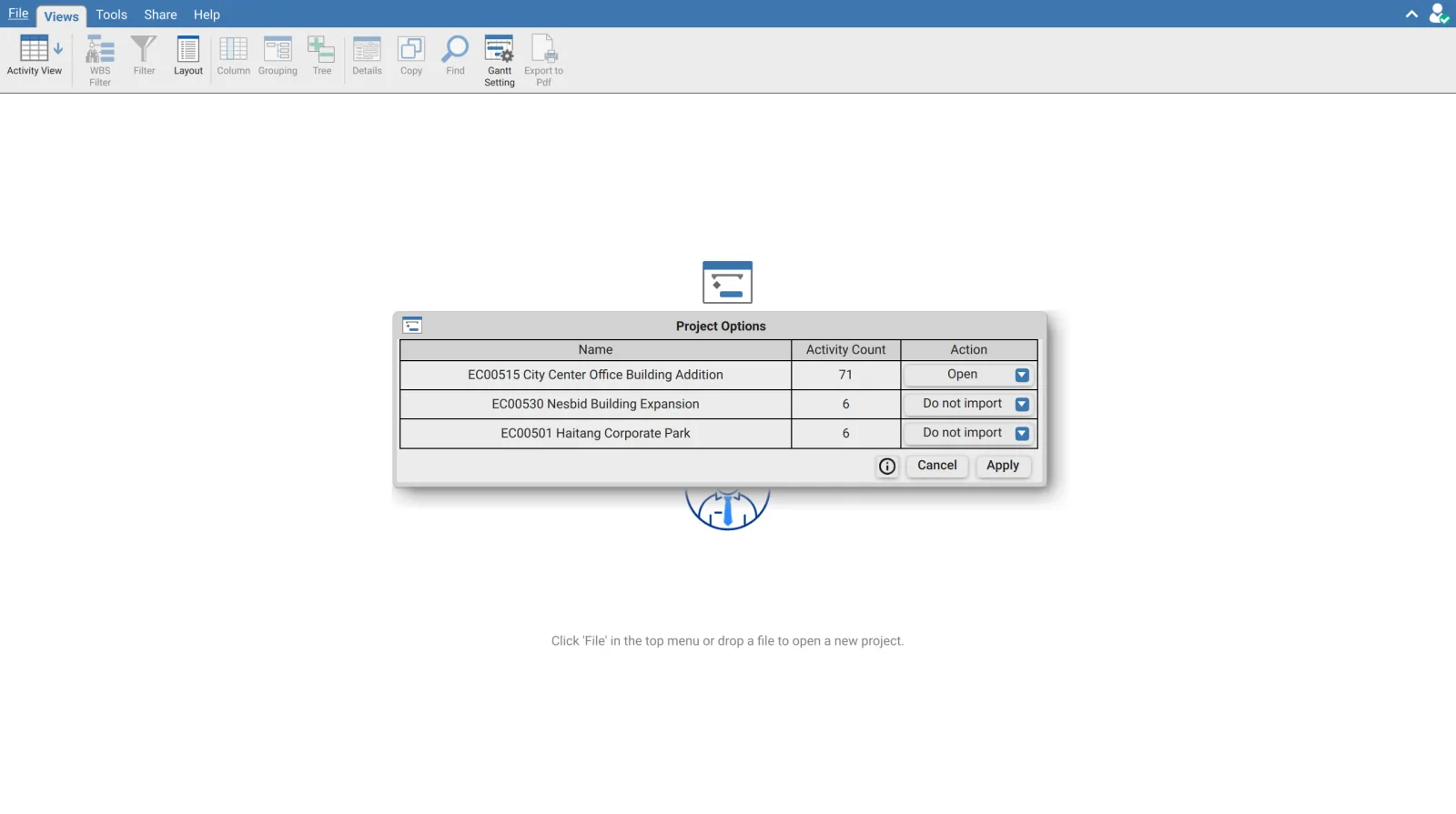
What the dialog shows
| Column | Contains |
|---|---|
| Name | The project name from the file. It can be edited here before import |
| Activity Count | How many activities the project holds |
| Action | What to do with this project |
Nothing is loaded until Apply. Cancel abandons the file entirely.
The four actions
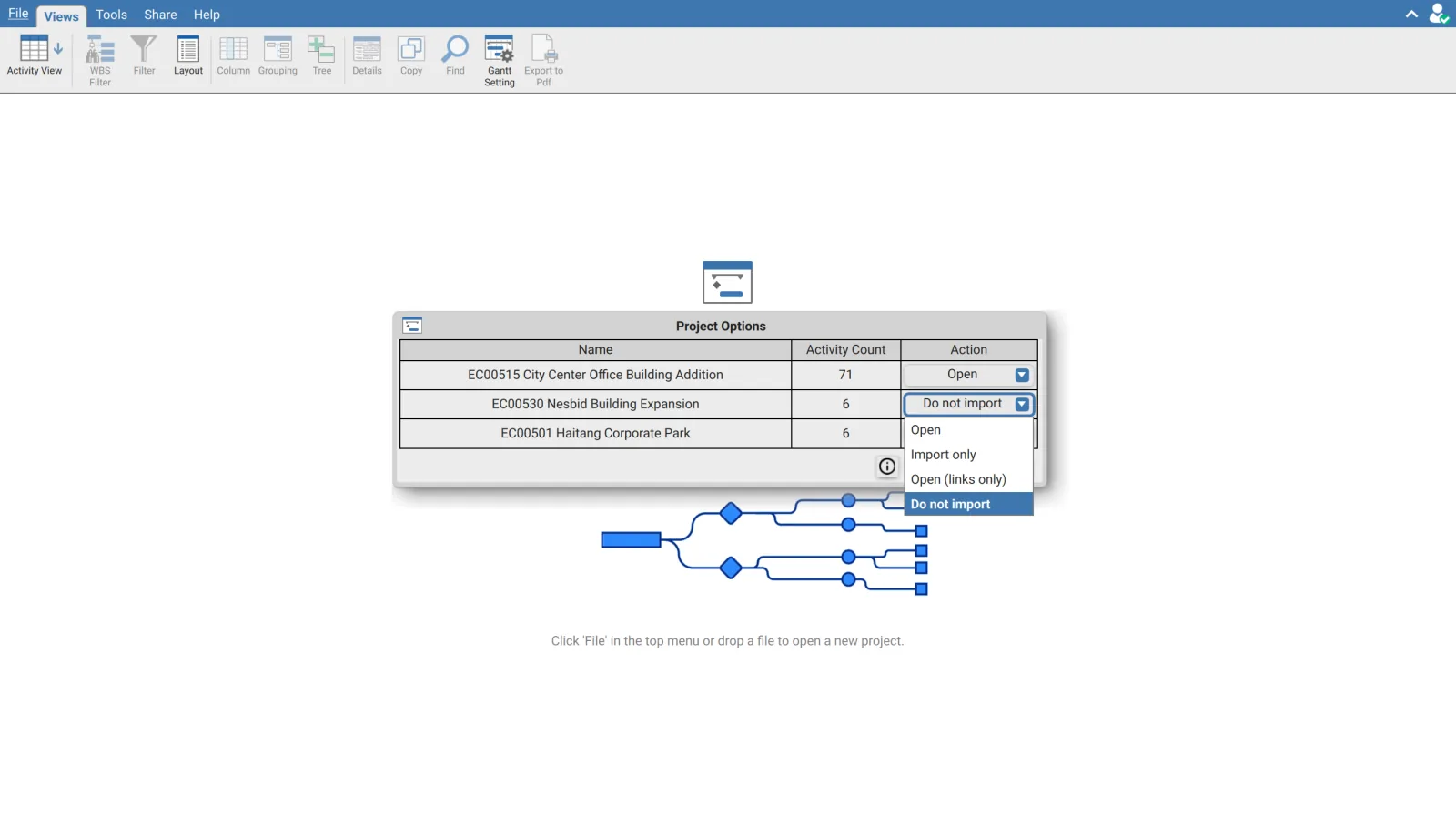
| Action | Result |
|---|---|
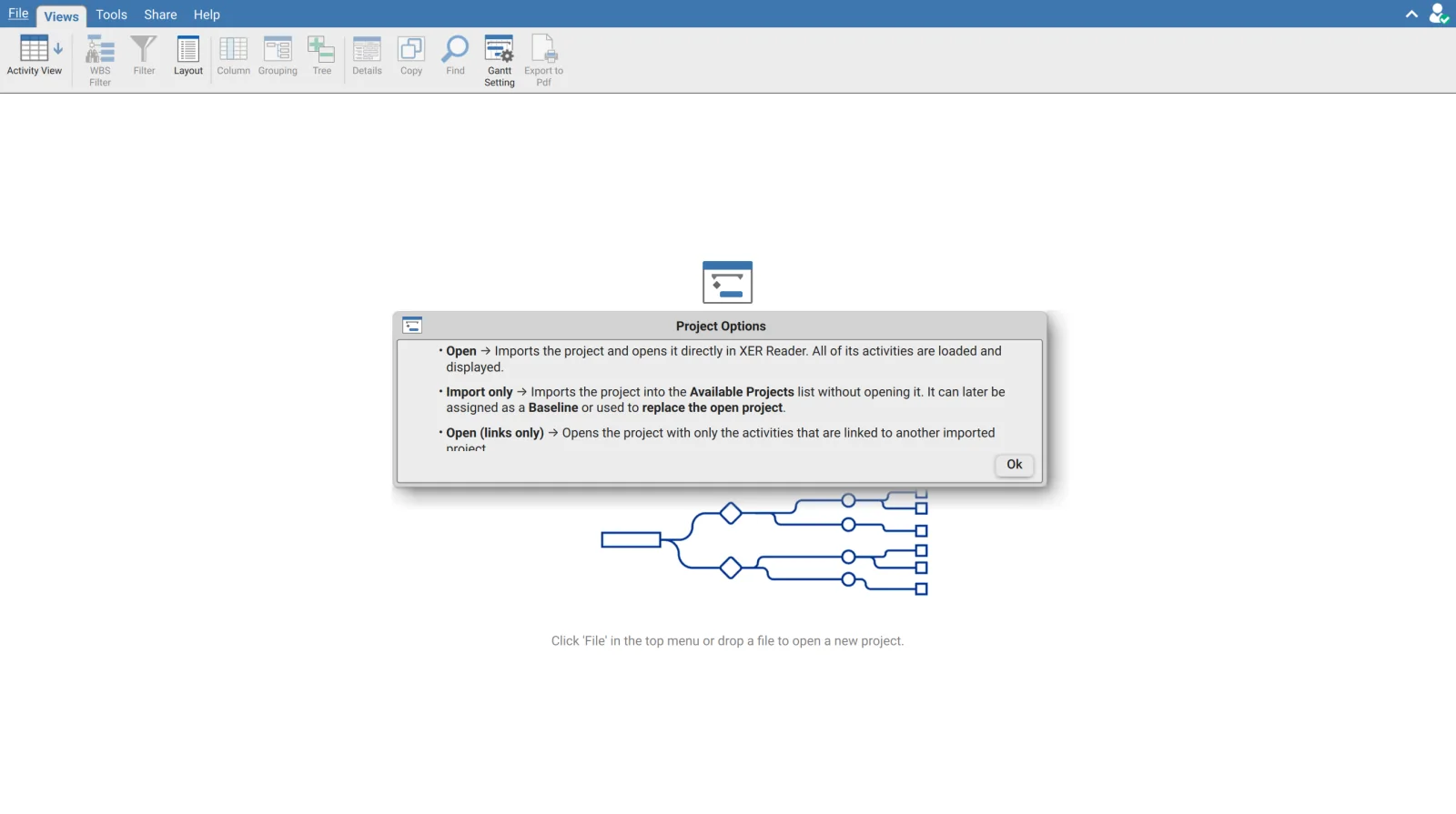
| Open | Imports the project and opens it. All of its activities are loaded and displayed |
| Import only | Imports the project into the Available Projects list without opening it. It can later be assigned as a baseline or used to replace the open project |
| Open (links only) | Opens the project with only the activities that are linked to another imported project |
| Do not import | Leaves the project out. Its activities and its links to the other projects are discarded |
The dialog carries an information button that states the same four definitions.
Open (links only)
This is the action to reach for when a neighbouring project matters only because your schedule depends on it.
A large programme is often split across several projects with interface milestones tying them together. Opening all of them in full buries your own activities among thousands you do not own. Excluding them entirely discards the relationships, and the dates that depend on them stop making sense.
Open (links only) is the middle option. The project is opened, but only the activities that are linked to another imported project are brought in. The interface points remain visible and the driving logic across the boundary is preserved, without the rest of that project's detail.
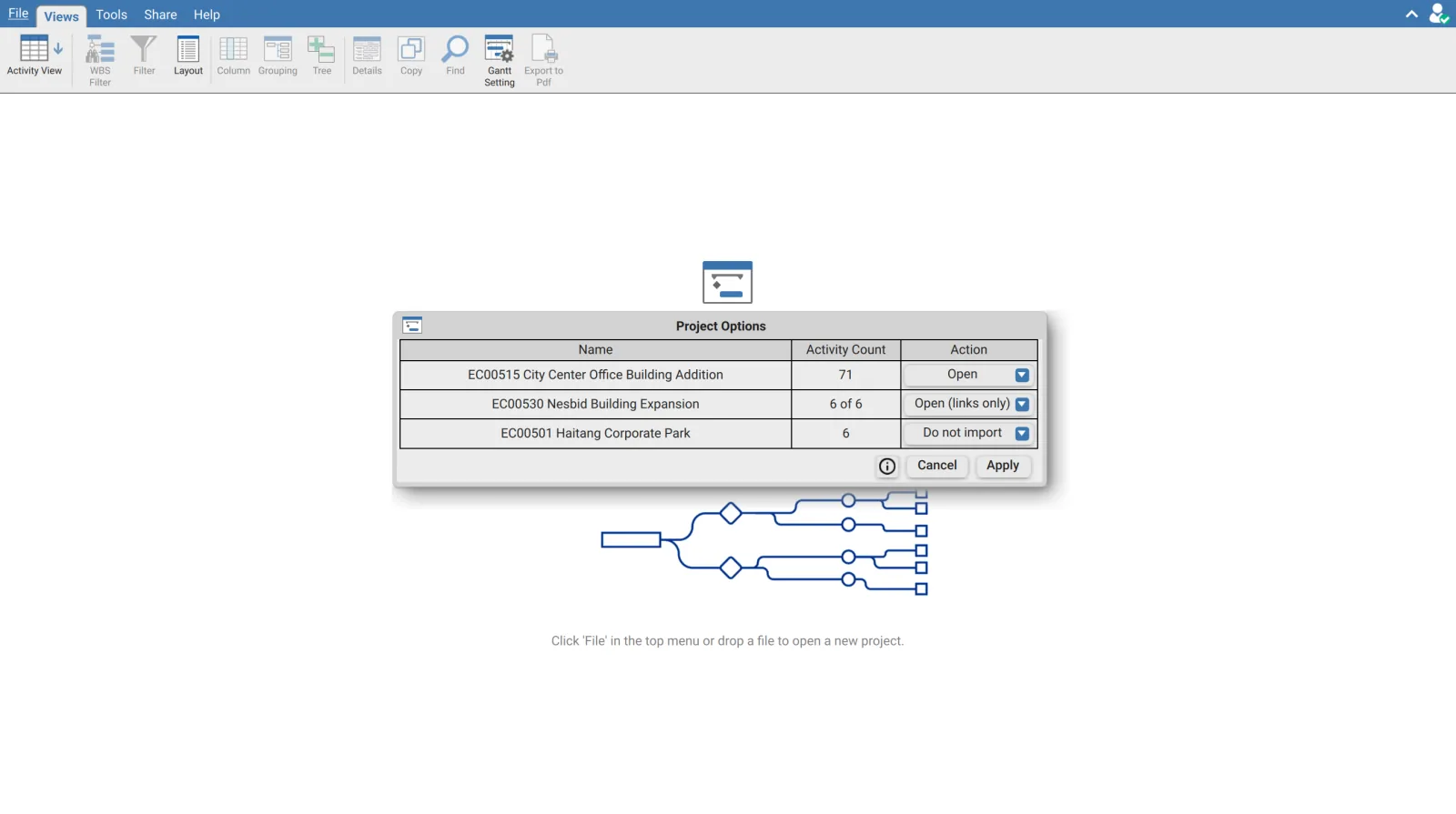
The Activity Count column changes format for a links only project, showing the linked count out of the total, for example 6 of 6. Check this number before applying. A project reporting 4 of 900 contributes four interface activities, while one reporting 0 has no links to the projects you are importing and will contribute nothing.
Choosing an action per project
The actions are set independently, so a typical multi project file is handled as a mixture.
| Project | Usual action | Why |
|---|---|---|
| The one you are reviewing | Open | You need all of its detail |
| A neighbouring project you interface with | Open (links only) | The interface activities matter, the rest does not |
| A previous update of the same project | Import only | Assign it as a baseline afterwards |
| Anything unrelated in the file | Do not import | Keeps the schedule to what you are working on |
Import only and the Available Projects list
A project imported without being opened goes to the Available Projects list in Tools then Manage Baseline. That list holds every imported project, not only the open ones. From there a project can be assigned as a baseline, or dragged into the main project slot to replace what is open.
This is the route for comparing two updates of the same programme that arrive in one file. Open the current one, import the earlier one, then assign it as the baseline.
Renaming before import
The Name column is editable in this dialog. Where a file carries several projects with similar names, renaming them here is easier than working out afterwards which is which, because the name is what identifies a project in the baseline list and in the export project selector.
What happens to cross project links
Relationships between projects survive only where both ends are imported. Setting a project to Do not import discards its links to everything else in the file, so an activity that was driven across the boundary loses that predecessor. If a date looks wrong after import, and the activity has no driving predecessor, check whether the project at the other end of that link was excluded.
After import
Exporting from a multi project file asks which project to write, through Export Project in the Export dialog. See Export schedule data.
If activities you expect are missing after opening a multi project file, the import actions are worth checking before the filters. A project set to Do not import, or to Open (links only), is a more likely explanation than a WBS or column filter you do not remember applying.