
How to Set Date, Number and Code Format Preferences
The General page of Preferences controls how dates, numbers and activity code values are written everywhere in the application. It is on the Tools tab, under Settings.
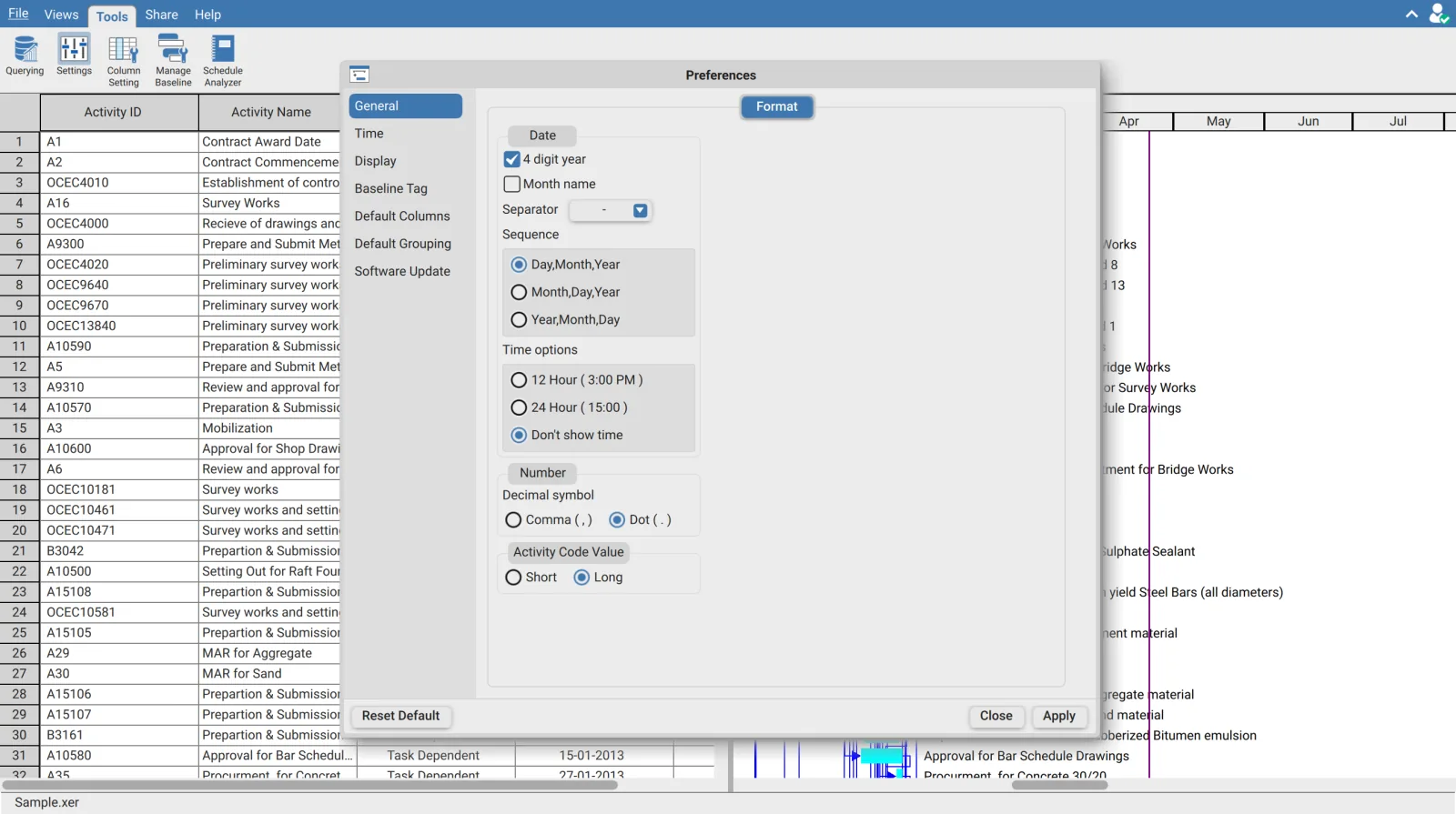
The date format is built from parts
There is no box to type a format string into. You set five things and the application composes the format from them.
| Control | Options | Default |
|---|---|---|
| 4 digit year | On or off | On |
| Month name | On or off | Off |
| Separator | -, . or / | - |
| Sequence | Day,Month,Year or Month,Day,Year or Year,Month,Day | Day,Month,Year |
| Time options | 12 Hour ( 3:00 PM ), 24 Hour ( 15:00 ) or Don't show time | Don't show time |
The supplied combination gives dd-MM-yyyy. Turning Month name on swaps the numeric month for its abbreviation, so the same date reads 16-Jan-2013 instead of 16-01-2013.
Don't show time is the supplied setting, and it hides the time everywhere, not just in the table. On a schedule where activities start at different times of day, every date column will read as a bare date and two activities starting eight hours apart look identical. Pick 24 Hour before concluding that two dates are the same.
This format is not confined to the activity table. It is what the Network Diagram prints inside every activity box, what the condition builder for a Gantt bar filter validates a date entry against, and what the exported PDF carries. Changing it changes all of them together.
Decimal symbol
Comma ( , ) or Dot ( . ), supplied as dot. This is the separator used when a number is written out, which matters most when the numbers leave the application: a copy to a spreadsheet, a CSV export, or the tab separated text from the resource usage grid all carry whichever symbol is set here.
Activity Code Value
Short or Long, supplied as long. An activity code value in Primavera P6 has both: a short code and a longer description. This setting decides which of the two is written wherever a code value appears.
This one reaches further than it looks. Activity code values appear in columns, in group band headings when a schedule is grouped by an activity code, and in the values offered by filters. Switching between short and long changes what every one of those reads, so a grouping that made sense with long values can become a wall of unfamiliar short codes.
How the Preferences dialog behaves
Seven pages sit down the left. The footer is the same on every one.
| Button | Effect |
|---|---|
| Apply | Commits the changes and closes the dialog |
| Close | Discards every change made since the dialog opened |
| Reset Default | Restores the supplied values for the page you are on |
Reset Default is per page, and it does not commit. It puts the current page's values back to what the application ships with, and you still have to press Apply. Press Close after a reset and nothing changes at all.
Requirements
Requires a signed in account. The settings are stored per installation, not per schedule, so they carry across every file you open.