
How to Save and Manage Custom Filters
An expression filter built on a column can be named and reused. Saved filters persist between sessions and appear on the Filter menu alongside the supplied filters.
Save a filter
Open a column header filter and build a rule on the Expression tab, then click Apply.
On the Views tab, click Filter, then Save current as filter.
Type a name in Filter name and click Save.
The order matters. With no expression filter applied, Save current as filter refuses and reports that no expression filters are active. Ticking values on the List tab does not qualify. Only an expression counts, because only an expression can be re-evaluated against a different schedule.
What gets saved
The saved filter holds the conditions, not the matching activities. Applying it to an updated schedule re-evaluates the rule, so a saved critical path filter stays correct as the schedule changes.
Expression filters on several columns are saved together as one filter.
Manage saved filters
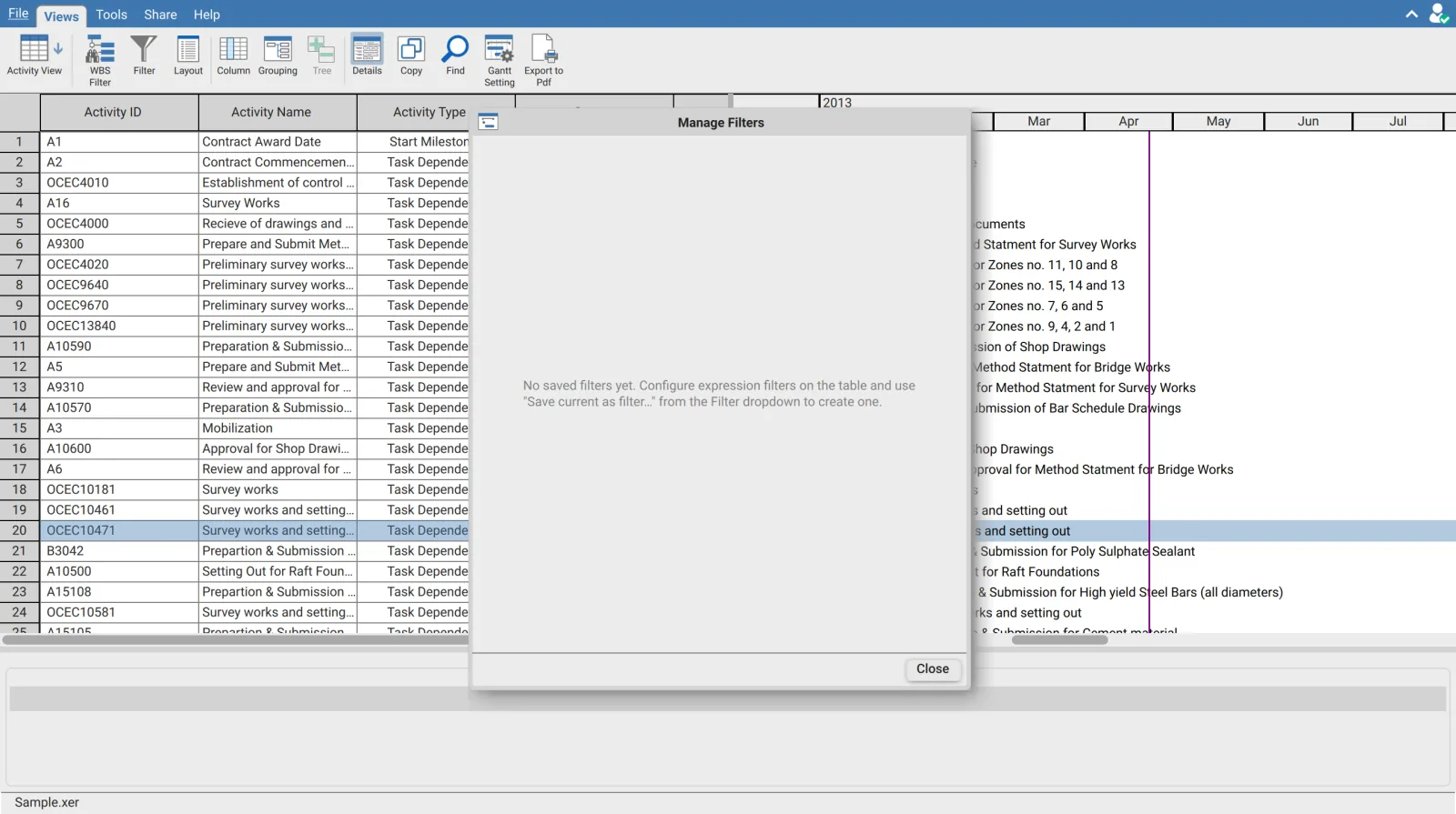
On the Filter menu, click Manage custom filters.
| Action | Effect |
|---|---|
| Apply | Applies the selected filter to the table without leaving the dialog |
| Rename | Changes the name shown on the Filter menu |
| Delete | Removes the saved filter, after confirming |
| Details | Shows the conditions the filter holds, which is how you check what an old filter actually does |
| Close | Closes the dialog |
Saved filters also appear directly on the Filter menu below the four supplied filters, so a filter in regular use does not need the manager at all.
Custom and supplied filters share one slot
A custom filter replaces whatever filter is applied, exactly as the supplied filters do. Only one activity filter applies at a time. Clear Filter removes it.
An activity filter still combines with a WBS filter and with column filters, so a saved filter can be narrowed further by selecting a WBS branch.