
How to Use the Activity and Resource Calendars
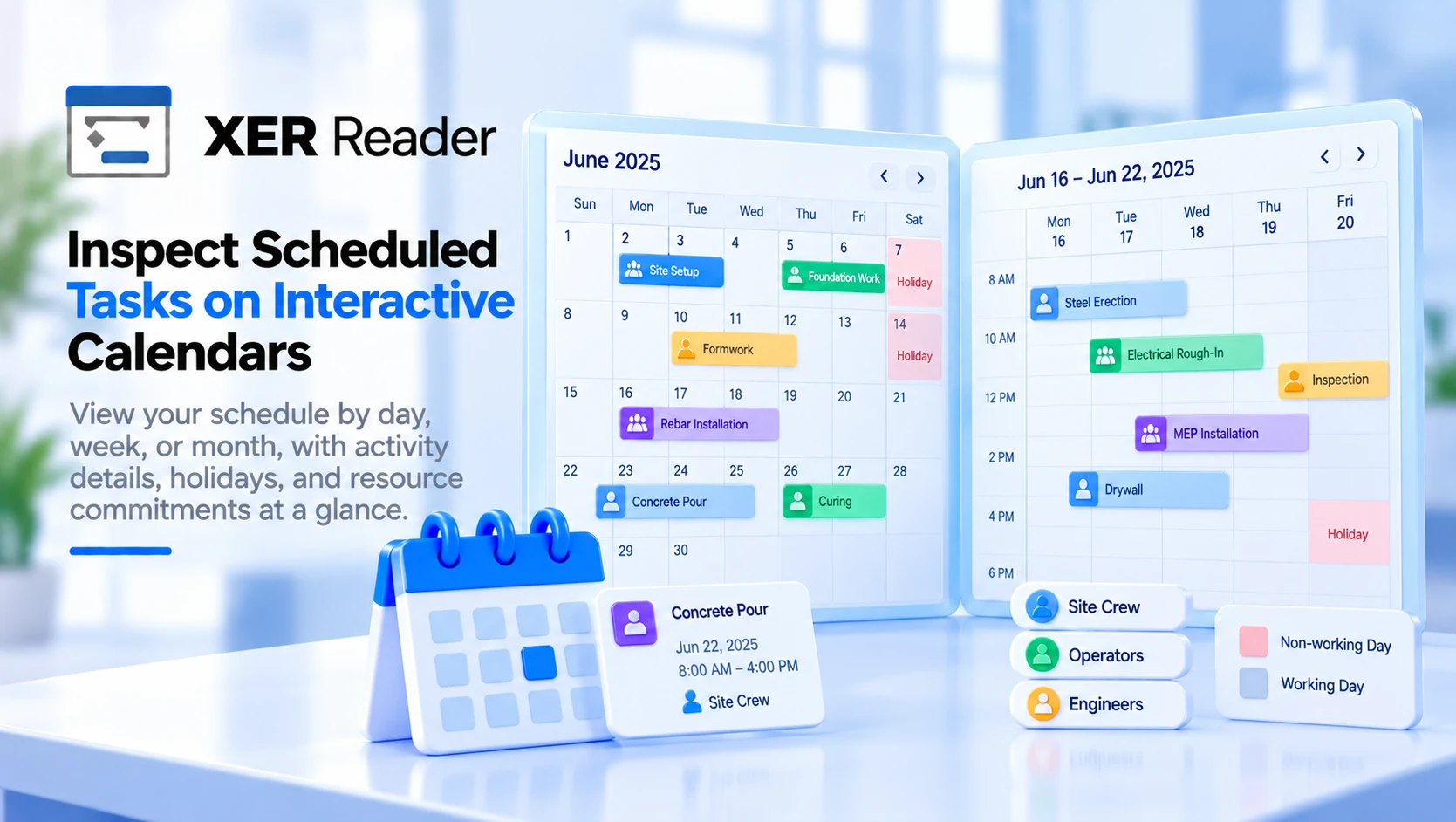
Two of the six views put the schedule on a calendar instead of a bar chart. Activity Calendar lays out activities by date; Resource Calendar lays out resource assignments. They share the same controls and behave identically, so what follows applies to both unless stated.
| View | Each block is | Coloured by |
|---|---|---|
| Activity Calendar | An activity | Its WBS element |
| Resource Calendar | A resource assignment | The resource |
An activity with two resources appears twice in the Resource Calendar and once in the Activity Calendar. Both are picked from the view button on the Views tab.
Three modes
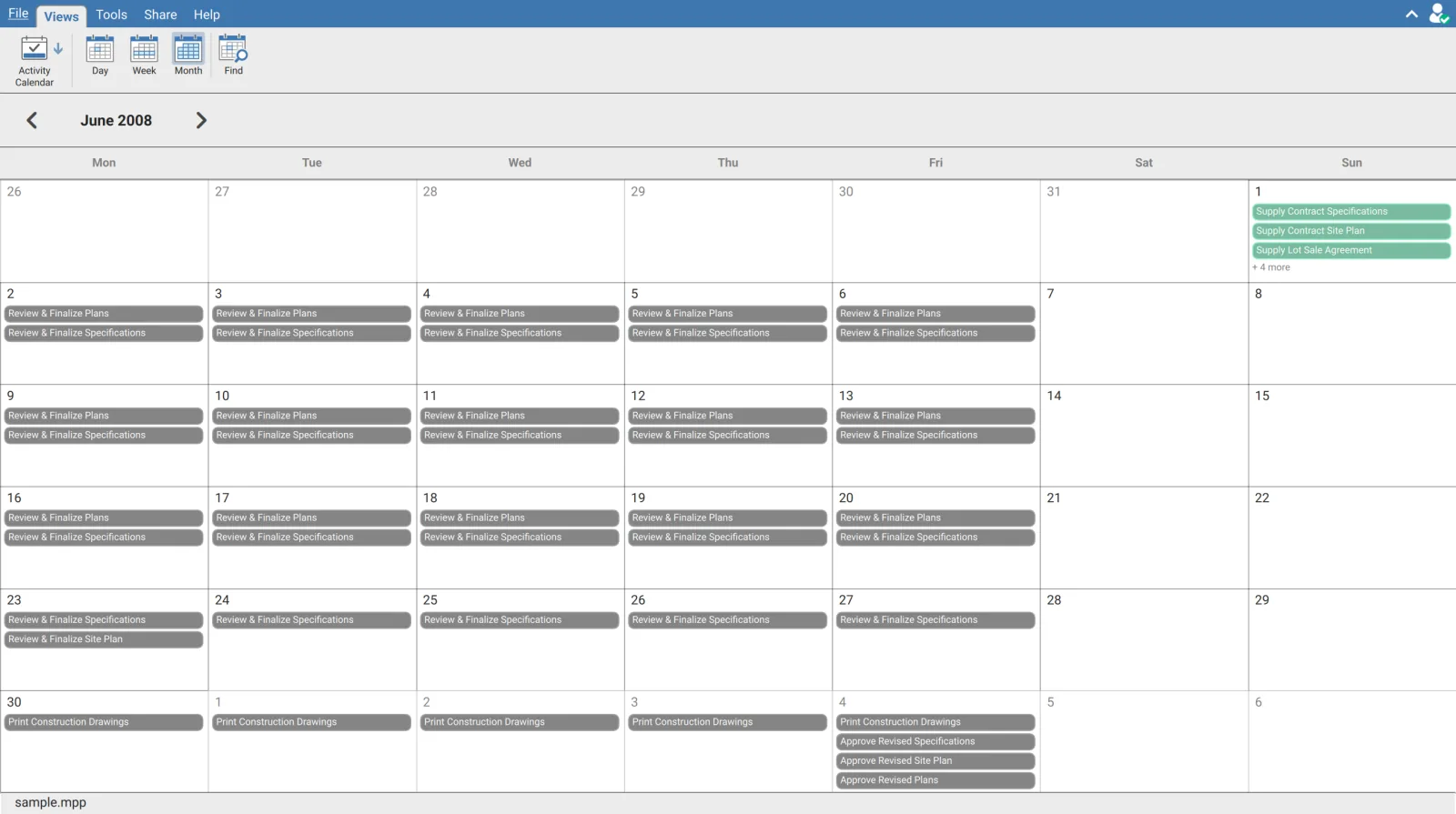
The ribbon carries Day, Week and Month, and the one in force stays highlighted.
| Mode | Layout |
|---|---|
| Day | One day against an hourly grid from midnight to midnight |
| Week | Monday to Sunday across the top, hours down the side |
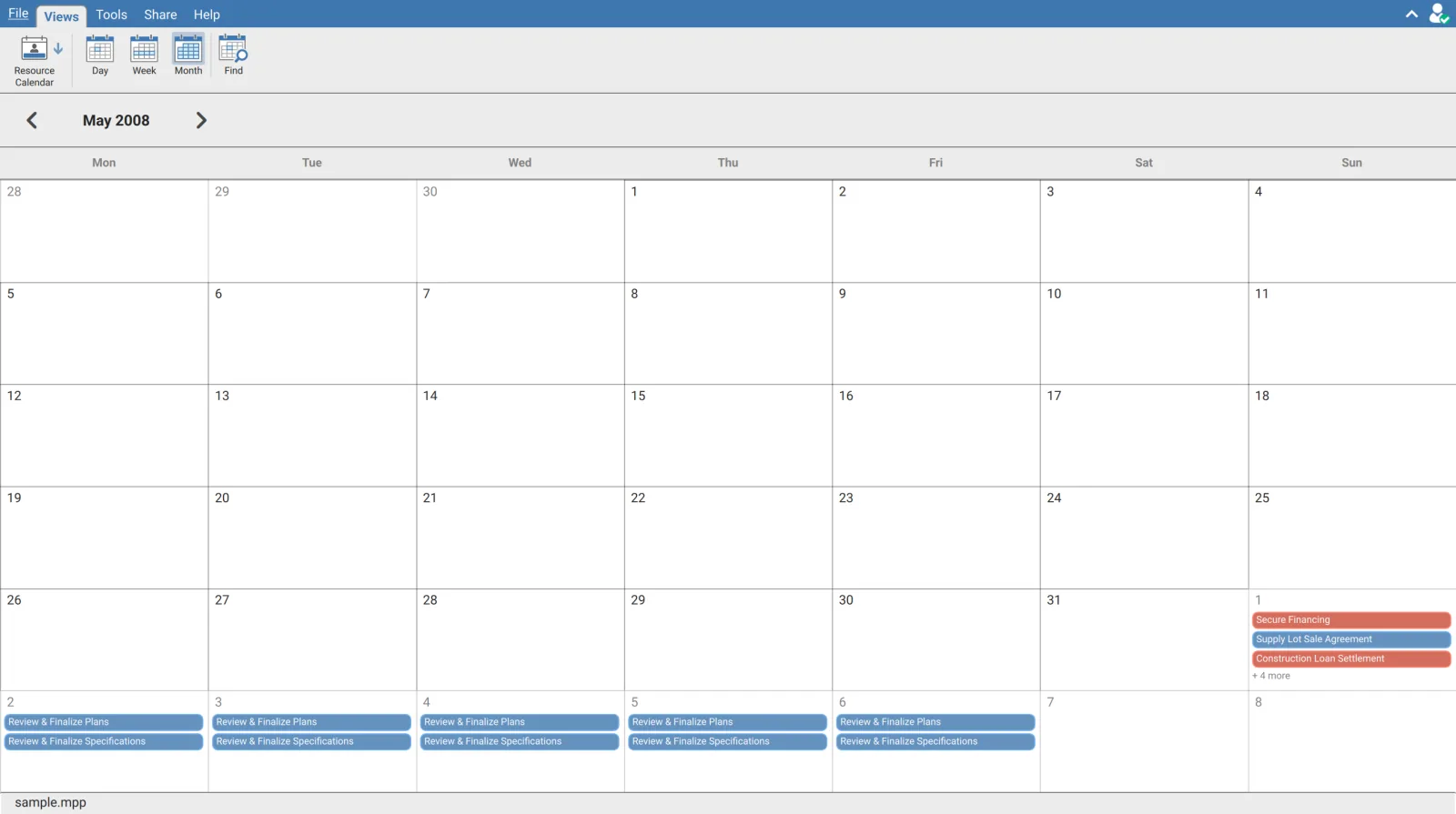
| Month | A six week grid, blocks stacked inside each day cell |
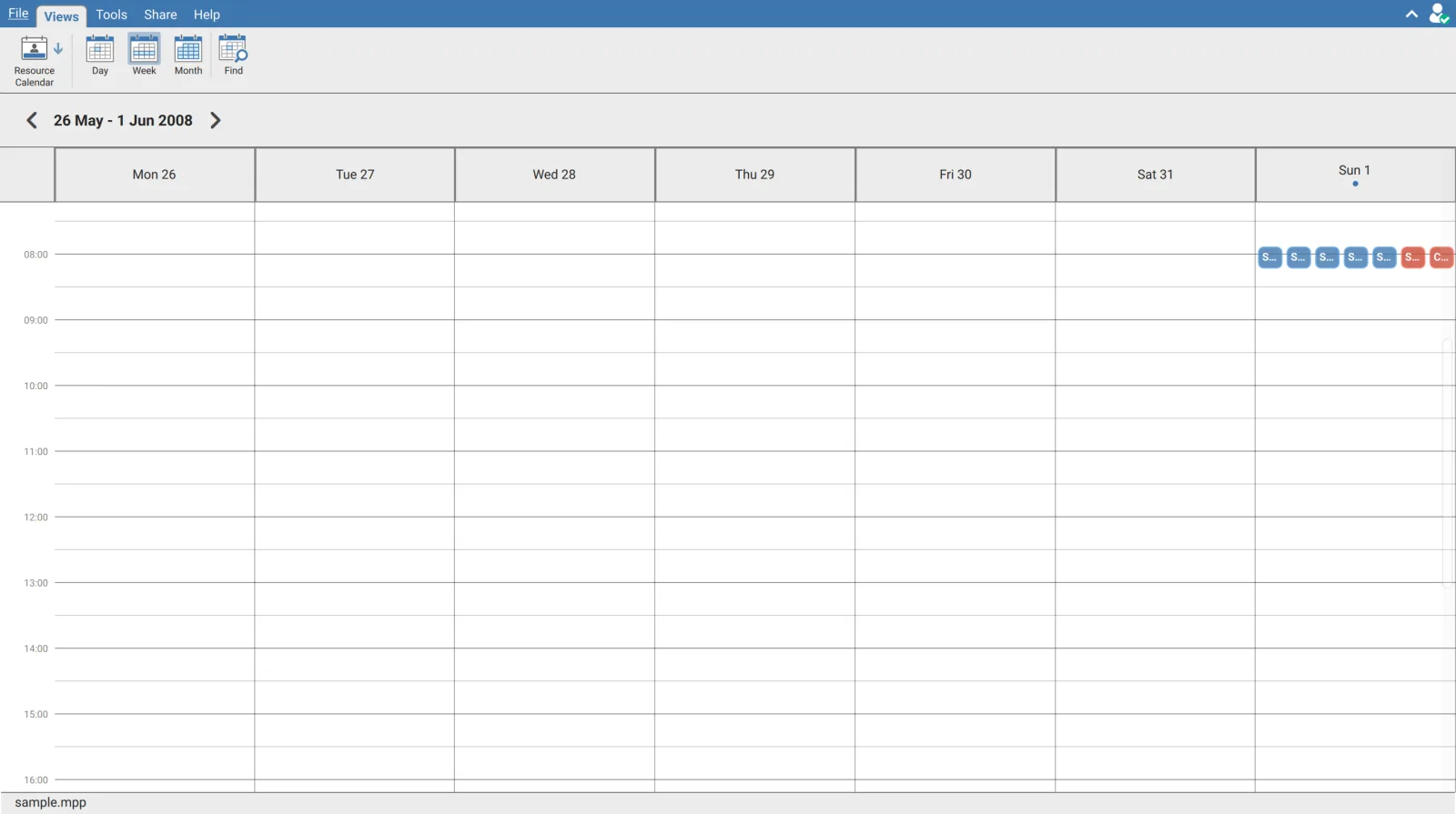
The mode and the date you were last on are remembered. Leave the view, come back, and it opens where you left it rather than resetting to the start of the project. The two calendars remember separately, so the Activity Calendar can sit on one month while the Resource Calendar sits on another.
Moving around
A chevron sits either side of the date label in the header. They step one day, one week or one month depending on the mode.
Double click any day in Week or Month mode and the view drops into Day mode on that date. It is the fastest way from an overview to the detail of one day, and it is the only way to see the activities hidden behind a + N more label: that label is text, not a button, so clicking it does nothing.
Jumping to a date
Find on the ribbon opens Go to Date.
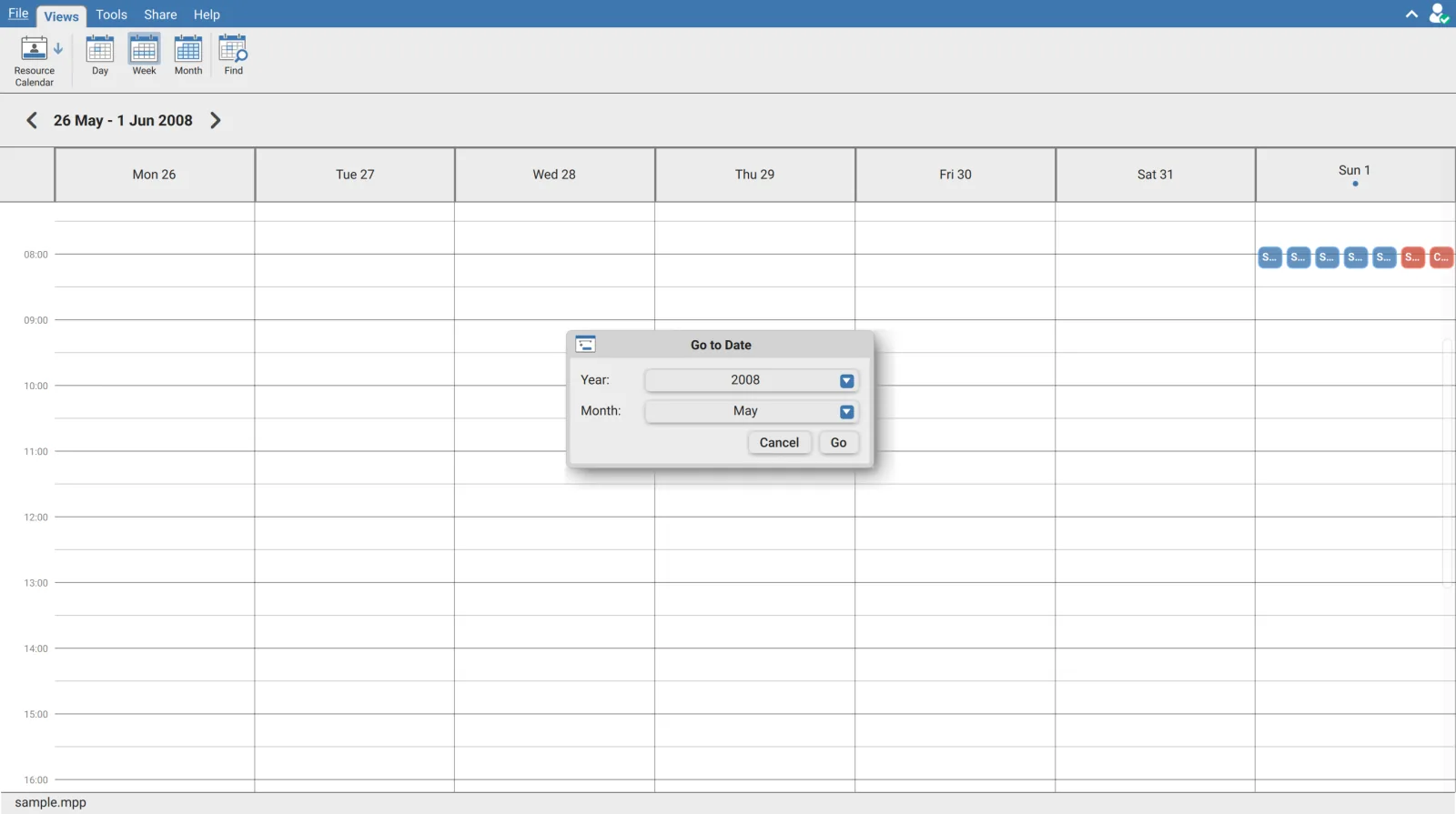
Go to Date does not change the mode. Jump from Month mode and you land on that month, still in Month mode. It moves all three modes to the same date behind the scenes, so switching mode afterwards keeps you where you jumped to.
Reading a block
Hover any block for a card with the detail.
| Line | Content |
|---|---|
| Title | The activity name |
| Second line | The date, then the start and finish times |
| Third line | The duration, as hours and minutes, or Milestone for a zero duration activity |
| Last line | In the Activity Calendar, Activity ID. In the Resource Calendar, the resource name |
A coloured dot on that last line matches the block, which is how you tie a block back to its WBS element or its resource when several are stacked together. Clicking a block selects it.
The day layout the Resource Calendar has and the other does not
In the Resource Calendar's Day mode, an unlabelled person icon sits at the right hand end of the date header. It switches the day between two layouts.
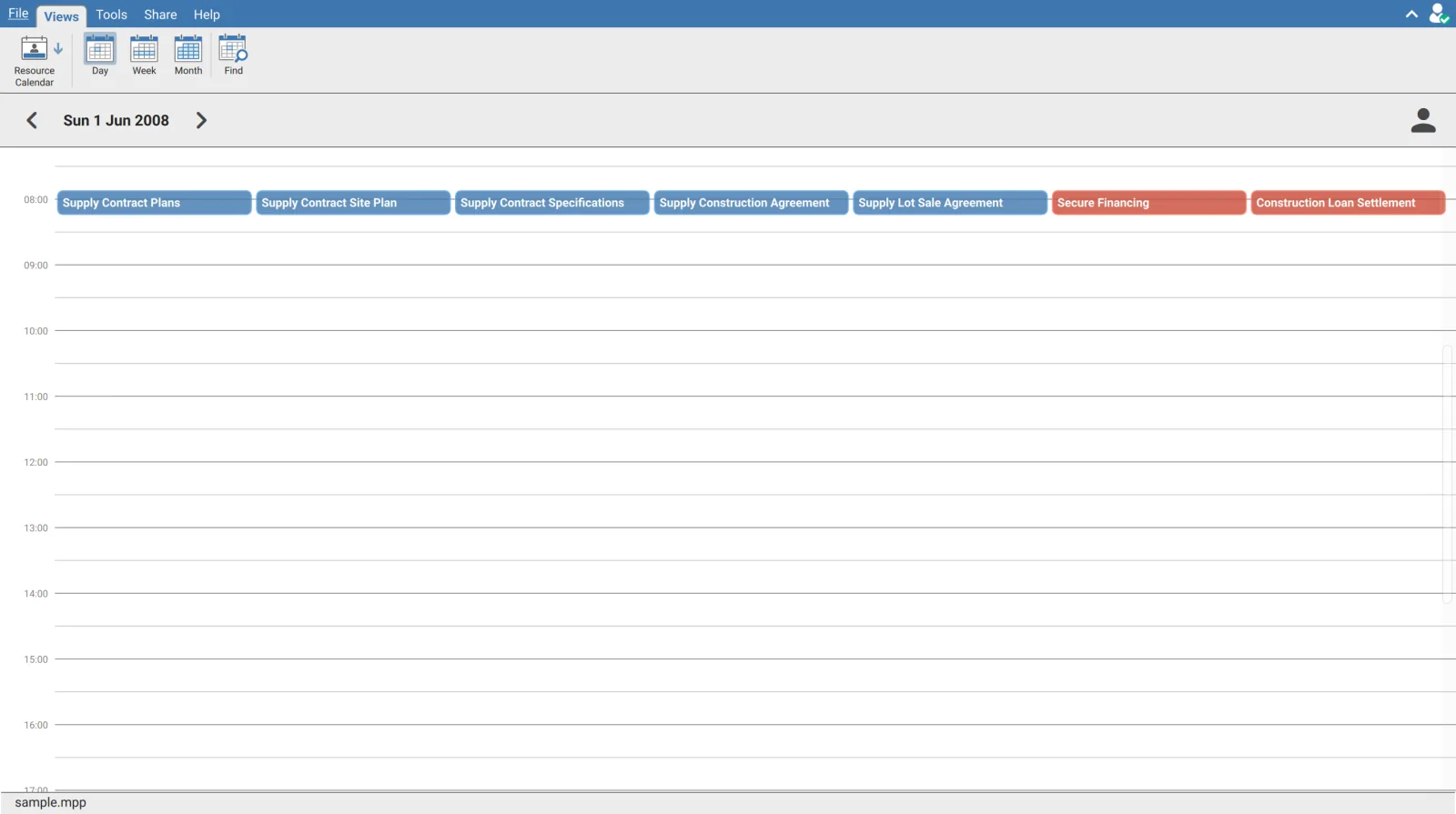
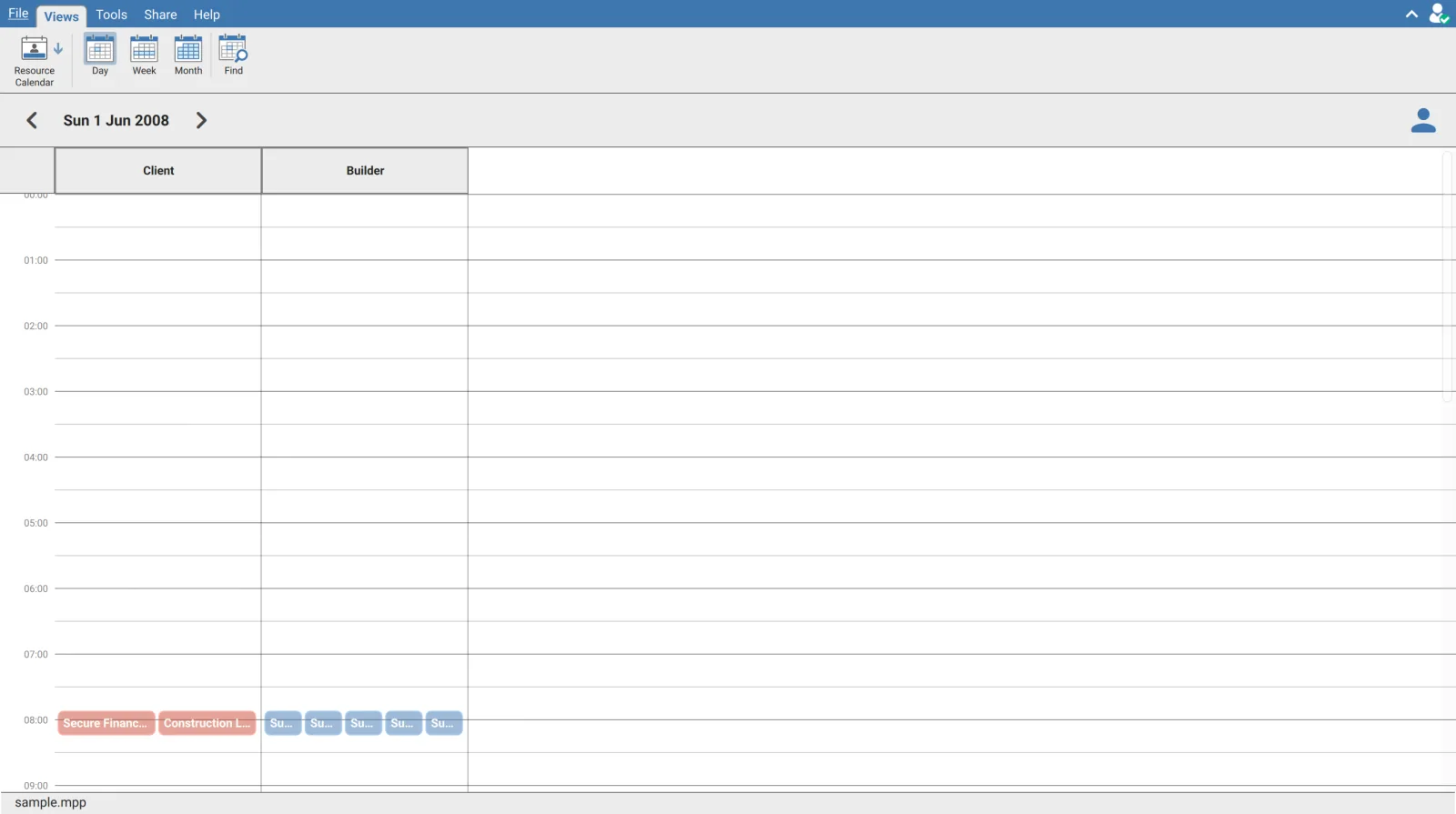
| Layout | Shows |
|---|---|
| Time grid | Every assignment that day laid across one hourly grid |
| By resource | A column per resource, each holding only that resource's assignments |
This is the control worth knowing about in either calendar. Nothing labels it, it is not on the ribbon, and it exists only in the Resource Calendar's Day mode. The by resource layout is what answers who is committed on a given day, which the time grid cannot show once blocks overlap. The icon turns the accent colour while that layout is active, which is the only indication of which one you are in. Columns scroll sideways when there are more resources than fit.
Where the day starts and ends
The time grid runs the full twenty four hours, so on a schedule where everything starts at 08:00 the blocks sit in a narrow band with a lot of empty grid above and below. Scroll the grid to bring the working hours into view.
When there is nothing to show
| View | Message |
|---|---|
| Activity Calendar | No activity calendar data is available. |
| Resource Calendar | No resource calendar data is available. |
A schedule with no resource assignments shows the empty message in the Resource Calendar while the Activity Calendar works normally. The two views read different data, so one being empty says nothing about the other. It is the same finding the Schedule Analyzer reports under its Resources check.
Loading a range shows Please wait ... while the model fetches it. Only the range on screen is fetched, so stepping to a new month asks for that month rather than the whole project.
Requirements
Both require an open schedule and a signed in account. The Resource Calendar also needs resource assignments in the file.