
How to Open the Activity Details Panel and View General Details
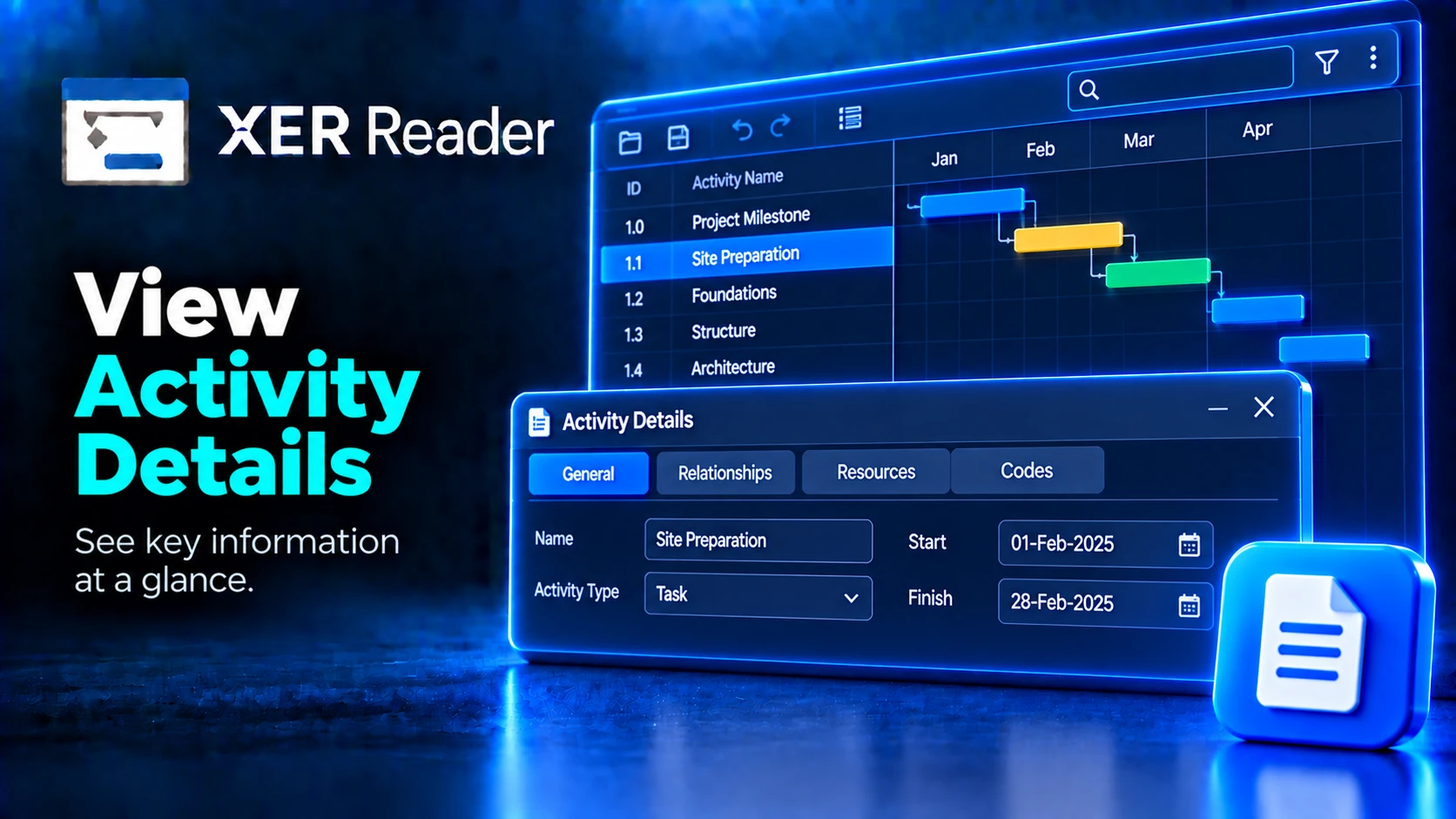
The details panel describes the selected activity across five tabs, along the bottom of the Activity view.
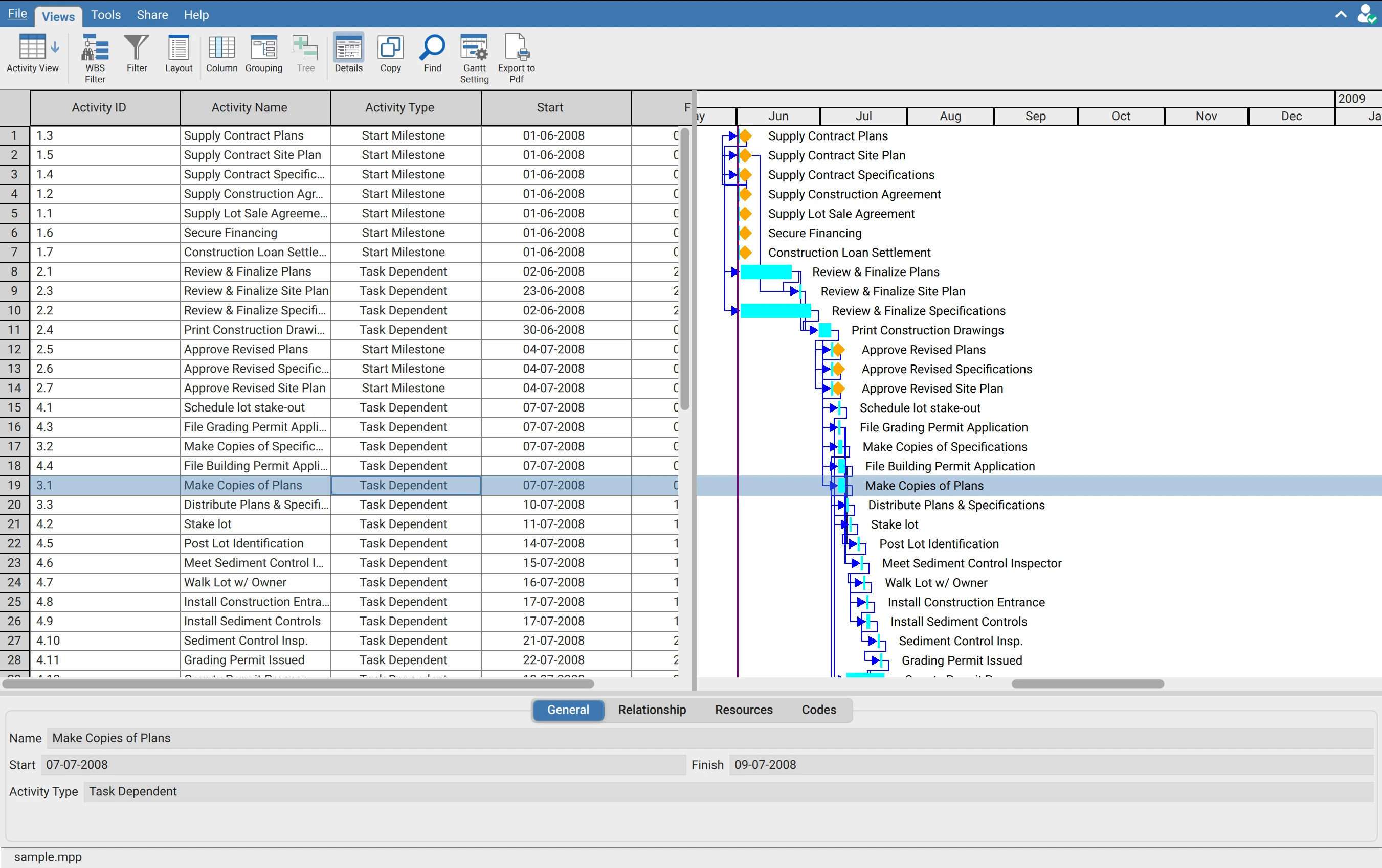
Open and close
On the Views tab, click Details. The same button closes the panel. It stays open while you work, so moving down the table walks the detail of each activity in turn.
Tabs
| Tab | Shows | Reading it answers |
|---|---|---|
| General | Name, Start, Finish, Activity Type | What is this activity and when |
| Relationship | Predecessors and successors with type, lag and driving flag | Why is it scheduled here |
| Resources | Resources assigned to the activity | Who and what is on it |
| Codes | Activity code values on the activity | Which area, discipline or contractor owns it |
| Scripting | A scripting console with its own output pane | Not required for reading a schedule |
It follows the selection
The panel always describes the currently selected activity, and switching activities updates every tab at once. This matters most with Find: as Find steps through matches the panel follows, so a search becomes a way to inspect each hit rather than only locate it.
The selected tab persists as the selection moves. Leaving the panel on Relationship and arrowing down the table walks the logic of each activity in turn, which is the quickest way to trace a driving path by hand.
The panel and the table share a selection
Selecting an activity in the panel's relationship tables moves the table selection to that activity, so the panel is also a way to navigate the schedule rather than only to read it.
Requirements
Requires an open schedule and a signed in account.