
How to Assign and Manage Baselines

A baseline in XER Reader is another project. You assign one project as the baseline of another, and its dates become the baseline dates the current schedule is measured against. Manage Baseline on the Tools tab is where that assignment is made.
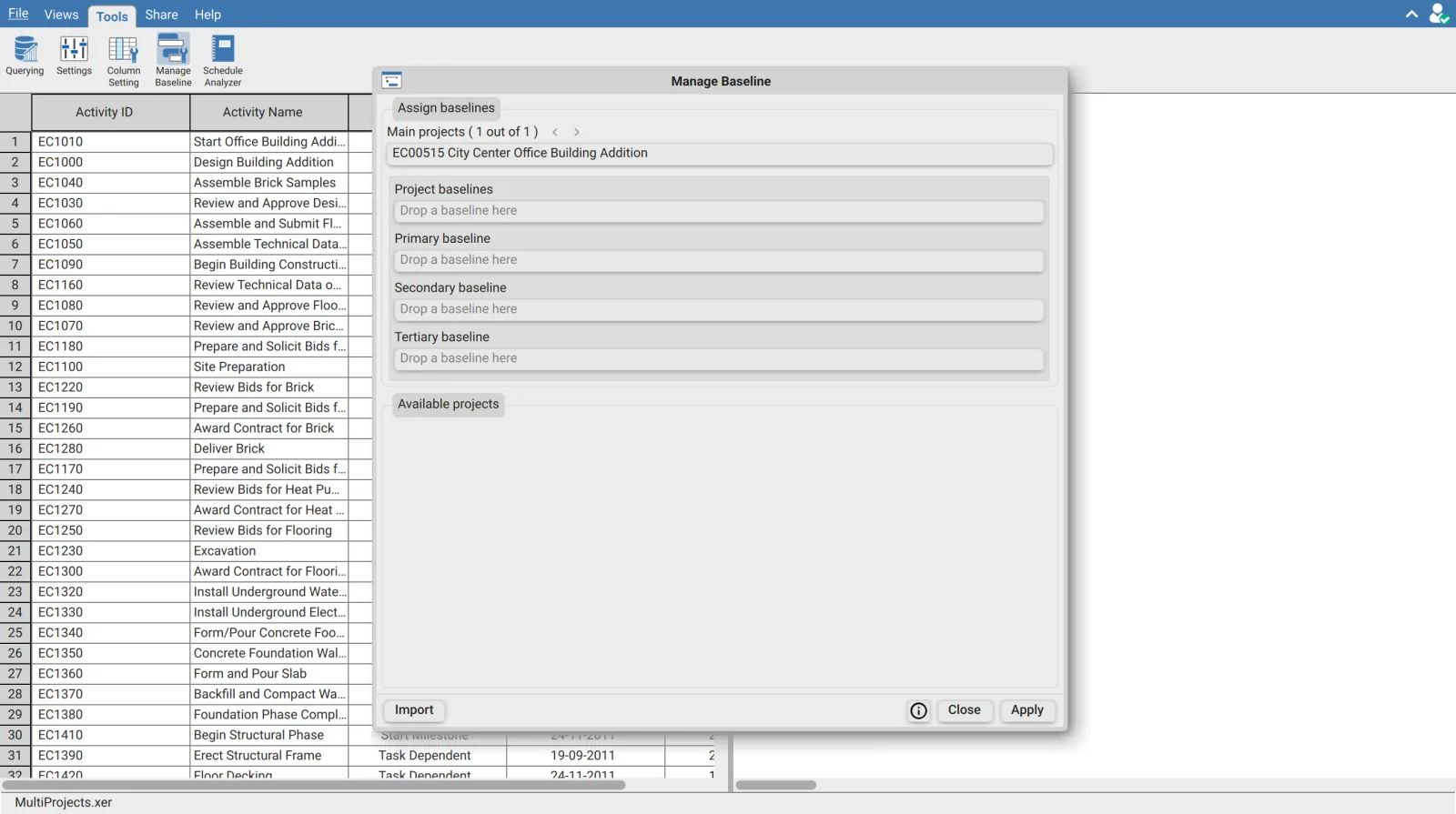
Four baseline slots
Each main project has four, filled by dragging a project from Available projects onto the slot. An empty slot reads Drop a baseline here.
| Slot | Default name | Field prefix |
|---|---|---|
| First | Project baseline | BLP |
| Second | Primary baseline | BL1 |
| Third | Secondary baseline | BL2 |
| Fourth | Tertiary baseline | BL3 |
Those names are the ones set under Tools then Settings, so a schedule renamed there shows your names in these slots rather than the supplied ones. The prefix is what you will see on the baseline columns and on the baseline date fields available to a Gantt bar time scale.
The four slots are not interchangeable, and the first one is the one that matters most. The Schedule Analyzer reads the Project baseline slot for both of its baseline dependent checks, BEI and Late Activities. Assigning a Primary baseline and leaving the first slot empty leaves both checks running as though there were no baseline at all.
Assigning one
Open Manage Baseline on the Tools tab.
Check the main project named at the top is the one you want to baseline. Where a file holds several, the chevrons beside Main projects step between them, and the count tells you how many there are.
Drag a project from Available projects onto a slot.
Click Apply.
Main projects and available projects are different lists. The count at the top covers only the projects that are open, not everything in the file. The list at the bottom holds every imported project. A project can be in both: a main project can serve as the baseline of another main project, and the ones that do are shown in bold.
Reading the Available projects list
| Indicator | Meaning |
|---|---|
| Blue dot | The project is currently assigned as a baseline somewhere |
| Bold name | The project is one of the main projects |
The list leaves out the project currently selected for assignment, which is why a file with a single project shows nothing there until you import something.
| Action | Where | Effect |
|---|---|---|
| Rename | The row menu | Changes the name the project is listed under |
| Delete | The row menu | Removes the project. Disabled on a main project |
| Import | Bottom left | Adds a project file to the list |
Import accepts XER, XML, MPP and MPX. Files can also be dropped straight onto the Available projects area, which does the same thing.
Clearing and moving an assignment
A filled slot carries a close button that clears it. A filled slot can also be dragged onto another slot, which moves the assignment and leaves the original empty rather than filling both.
Dropping the current main project onto one of its own baseline slots is refused, with the message "Project itself cannot be used as a baseline." A project cannot be its own baseline.
Replacing the main project
The slot above the baselines holds the main project itself, and it accepts a drop like any other. Dragging a project onto it replaces the open schedule with that project, keeping the baseline assignments in place.
This is the heavier of the two operations. Replacing the main project rebuilds the activity tree from scratch when you apply; changing only a baseline assignment refreshes the display without that rebuild.
Nothing takes effect until Apply
| Button | Effect |
|---|---|
| Apply | Commits the assignments and closes |
| Close | Discards every change made since the dialog opened |
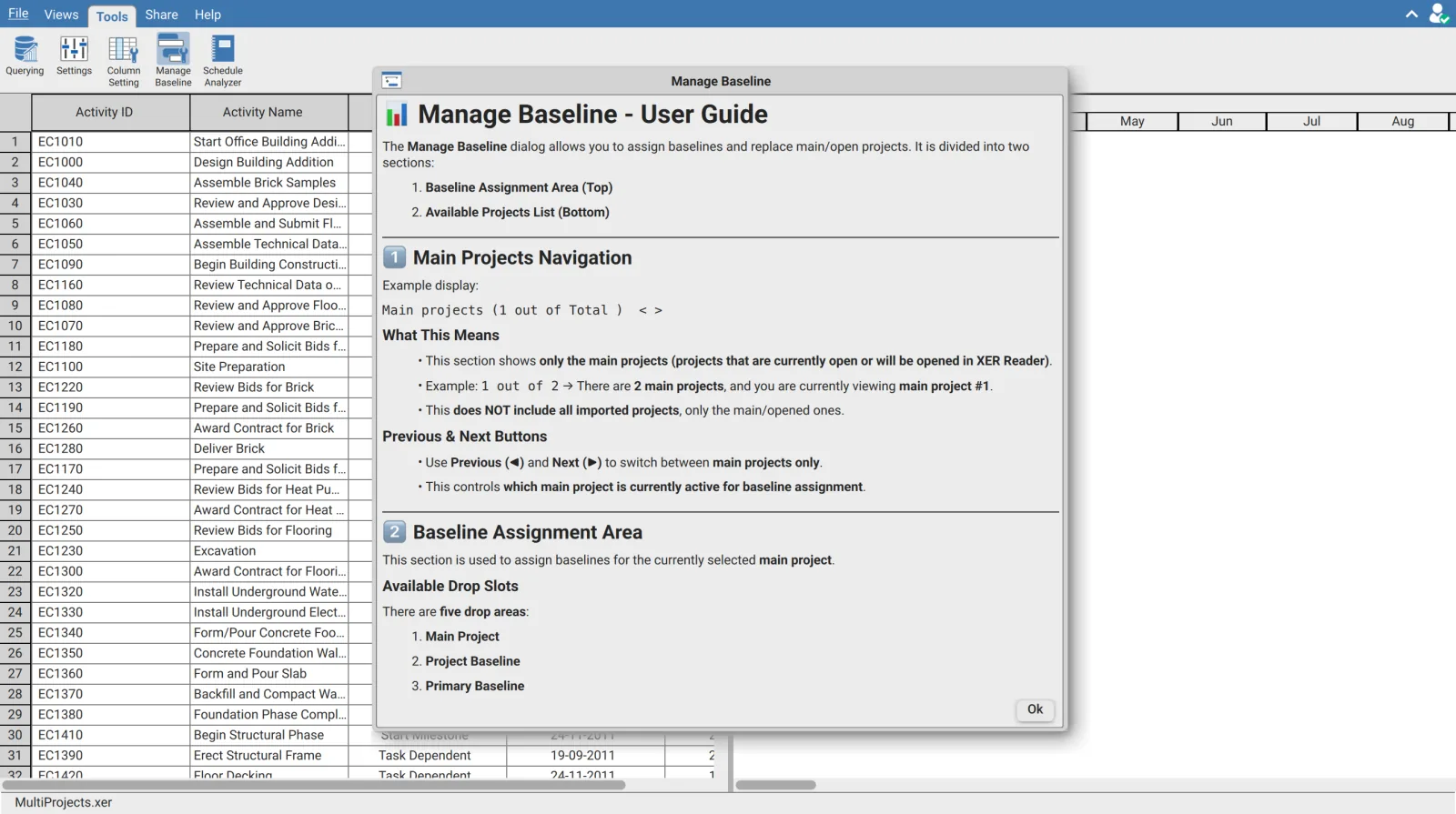
| The information icon | Opens the built in guide to the dialog |
How baseline activities are matched
Baseline activities are matched to current activities by Activity ID. The baseline project's planned finish is looked up against the live activity with the same Activity ID. Where no match is found, the activity silently falls back to its own planned finish, so it appears to be exactly on baseline. If Activity IDs were renumbered between the baseline and the current schedule, the comparison quietly stops meaning anything, and nothing on screen says so.
What a baseline gives you
| Where | What appears |
|---|---|
| Columns | The baseline date, duration and units fields under the baseline groups |
| Gantt bars | Baseline date fields become available to a time scale, which is how a baseline comparison bar is built |
| Schedule Analyzer | BEI and Late Activities become meaningful |
Without an assignment, BEI divides completed work by every non milestone activity rather than by the activities the baseline said should have finished, which makes a healthy schedule score badly.
Requirements
Requires an open schedule and a signed in account. Import is unavailable while in shared mode.