
How to Customize Activity Columns and Data Fields
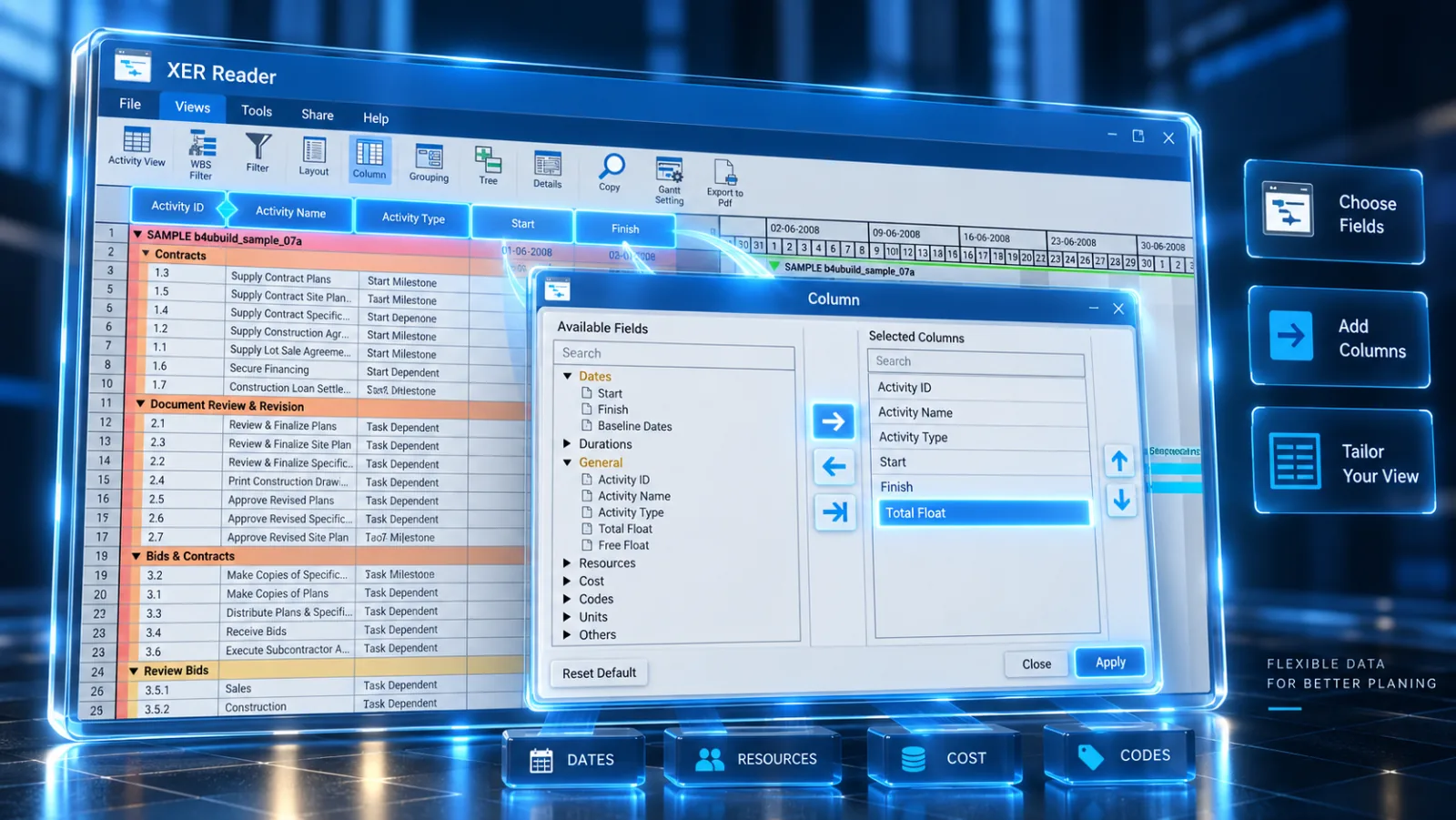
Customize which data fields are displayed in the Activity Table to focus on the exact schedule metrics required for your review.
Steps to Customize Columns
-
Select the Tools tab in the ribbon and click Column.

-
In the Available Columns list (left), find the desired field (e.g., Total Float, Early Start, or Resource Names).
-
Click the > button to move it to the Selected Columns list (right).
-
Use the Up and Down buttons to adjust column order, then click OK.
Commonly Used Columns
| Field | Purpose |
|---|---|
| Activity ID & Name | Unique identifier and task description. |
| Total Float | Identifies critical path tasks (Float ≤ 0). |
| Start & Finish | Early and actual execution schedule dates. |
| Physical % Complete | Current recorded progress on active tasks. |