
How to Set the Columns, Grouping and Baseline Tags a File Opens With
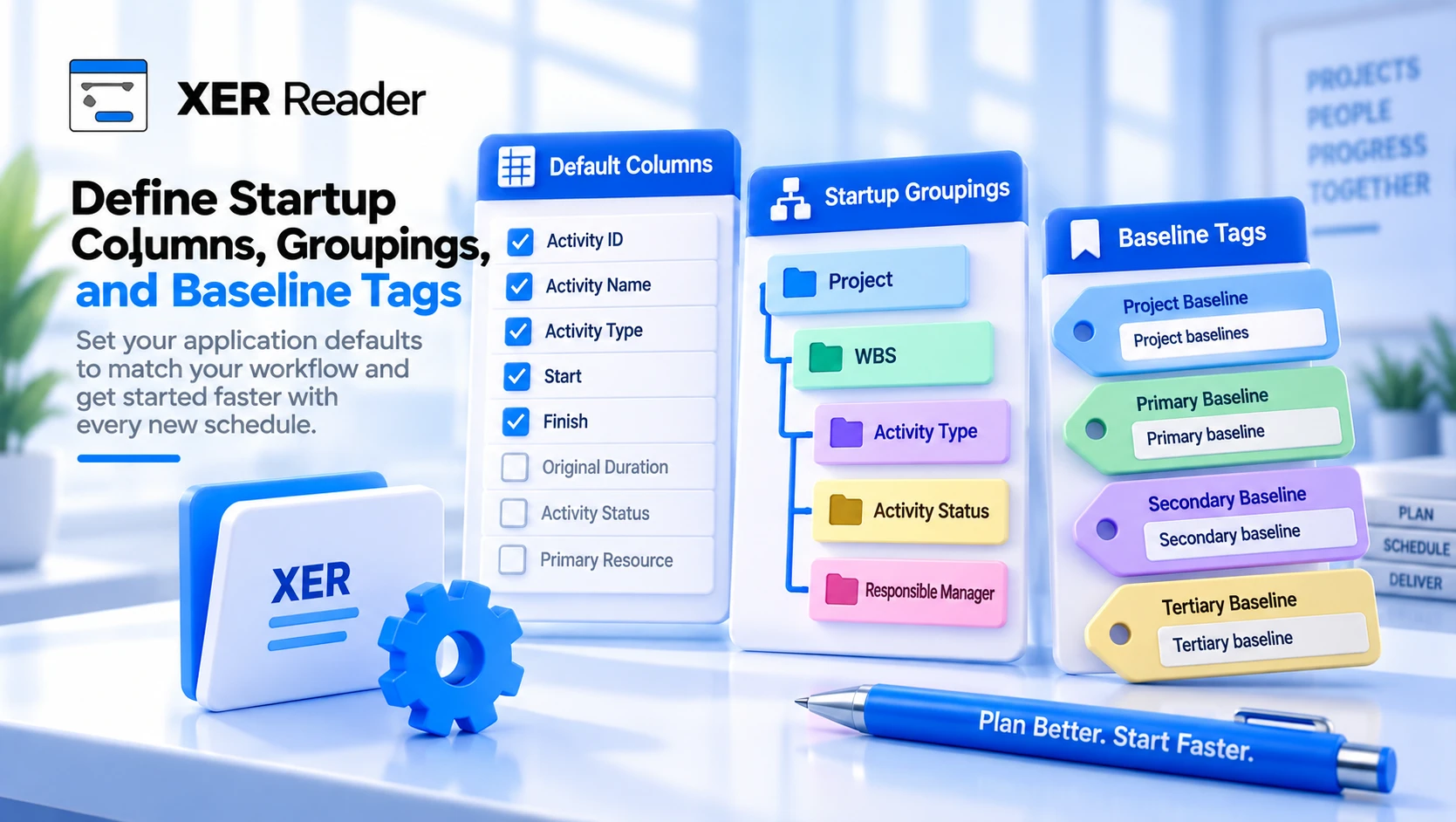
Three pages of Preferences control what a schedule looks like the moment it opens, before you touch anything: Default Columns, Default Grouping and Baseline Tag. All three are on the Tools tab, under Settings.
Default Columns
The page states its own job: "Manage which columns are shown by default when a new file is opened."
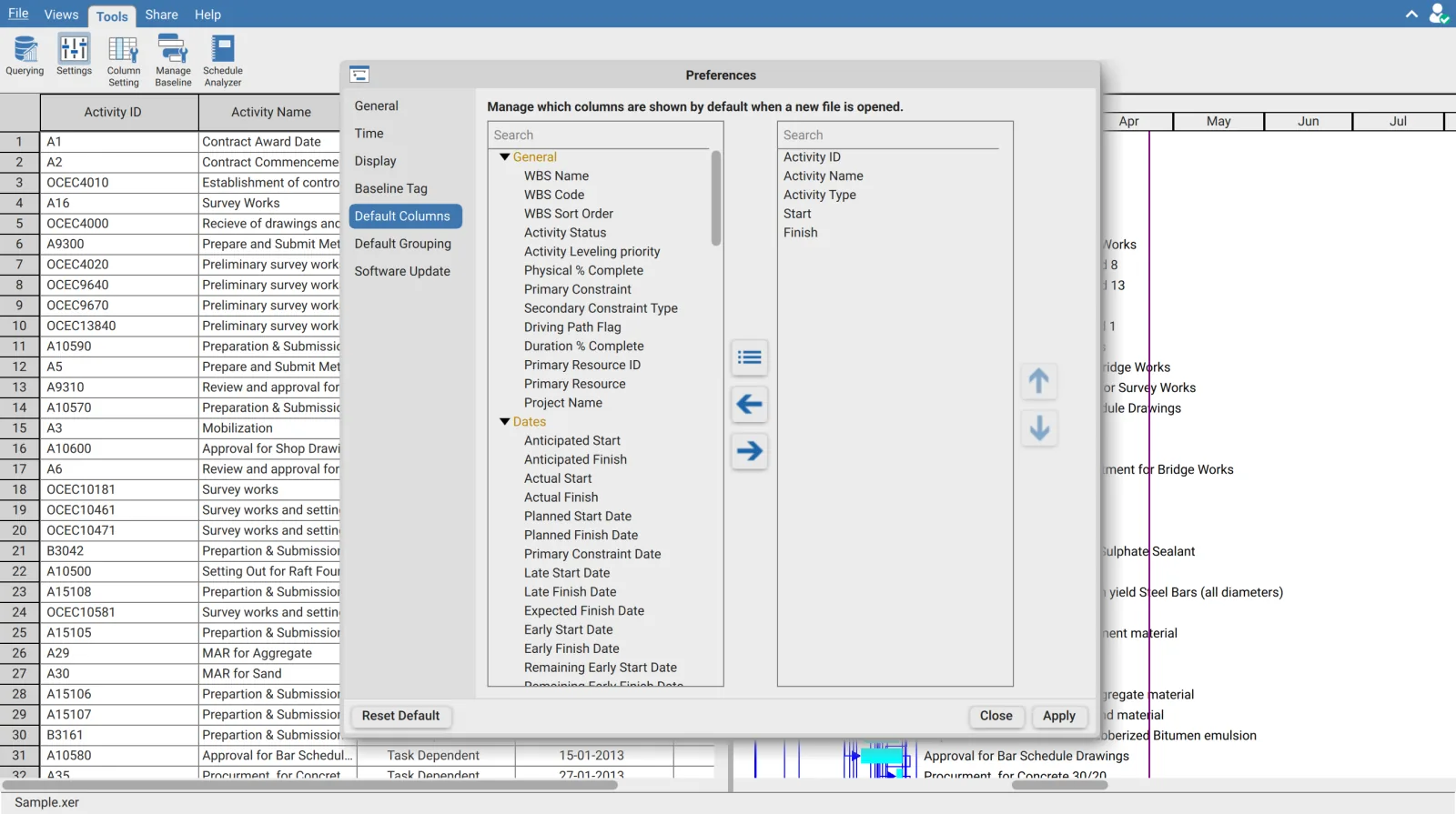
| Control | Effect |
|---|---|
| Right arrow | Adds the selected field to the default set |
| Left arrow | Removes it again |
| The button above them | Expands or collapses every category in the available tree |
| Up and down arrows | Move a chosen column earlier or later in the order |
| Search | Each list has its own box |
The order in the right hand list is the order the columns appear in the table, left to right.
The reorder arrows stop working while the right hand search box has text in it. They are disabled on purpose, because a filtered list does not show the true positions and moving a row inside it would put the column somewhere you did not intend. Clear the search before reordering.
Default Grouping
The same idea for grouping, and the same Group Manager table used elsewhere in the application.
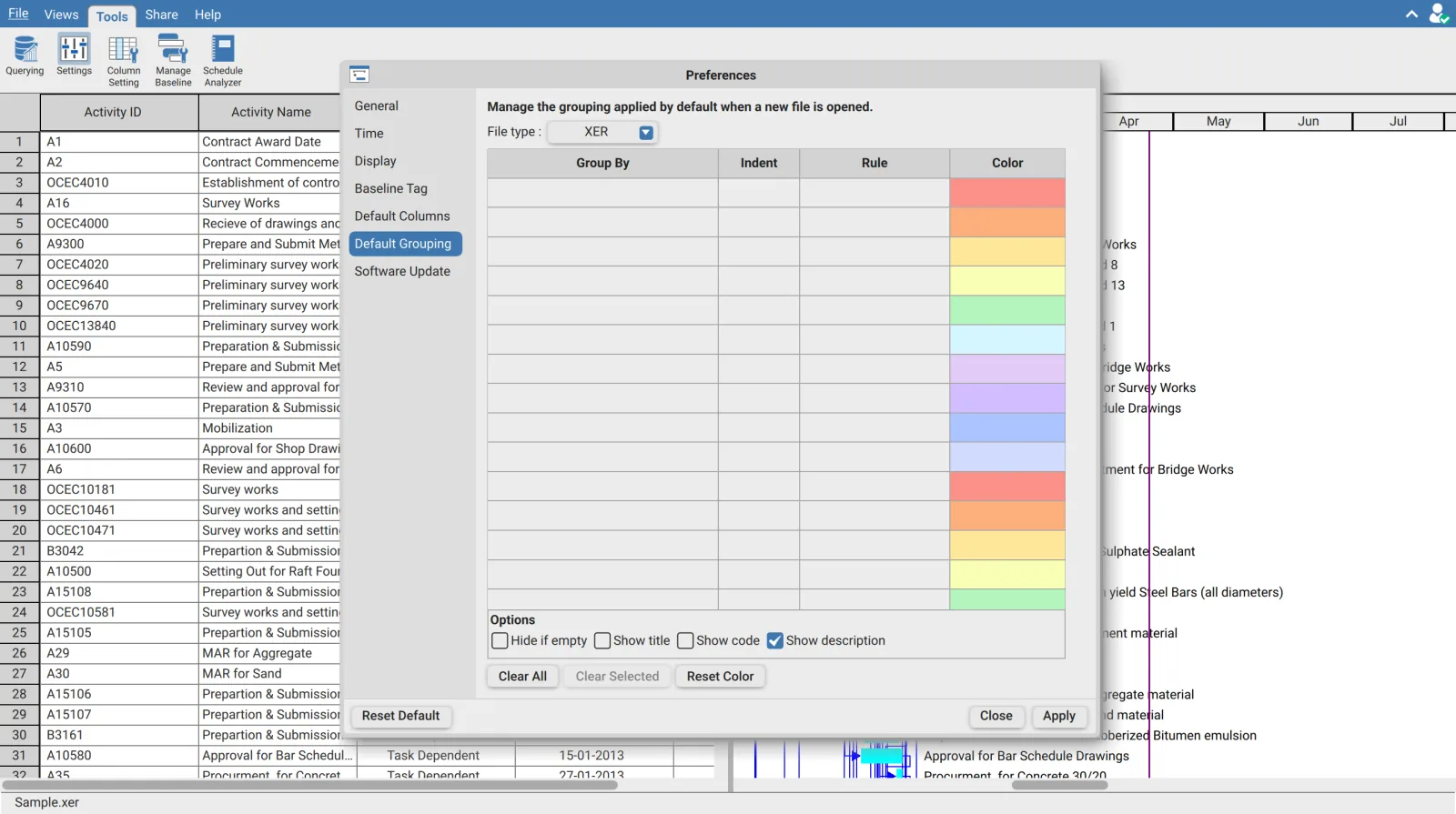
The grouping is stored per file format, not once for the application. The File type selector at the top switches between XER, P6 XML, MPP and MPX, and each keeps its own default. Setting up a grouping while the selector reads XER does nothing for the MPP files you open next.
Of the four, only MPP ships with a grouping already set: the WBS grouping Microsoft Project files have always opened with. The other three ship empty, so an XER opens ungrouped unless you set something here.
| Column | Meaning |
|---|---|
| Group By | The field to group on |
| Indent | Whether a multi level field creates child level rows |
| Rule | How deep a multi level grouping goes, or the period for a date field |
| Color | The band colour for that level |
| Option | Effect |
|---|---|
| Hide if empty | Drops bands that contain no activities |
| Show title | Puts the field name in the band |
| Show code | Puts the value's code in the band |
| Show description | Puts the value's description in the band |
Clear All empties the table, Clear Selected removes one row, and Reset Color puts the supplied palette back without touching the grouping.
Sqlite files are deliberately absent from the file type list. A database the application saved carries its own layout, and imposing a default over it would discard what was saved.
Baseline Tag
The four baseline slots in Manage Baseline, and the baseline columns and date fields that come with them, take their names from this page.
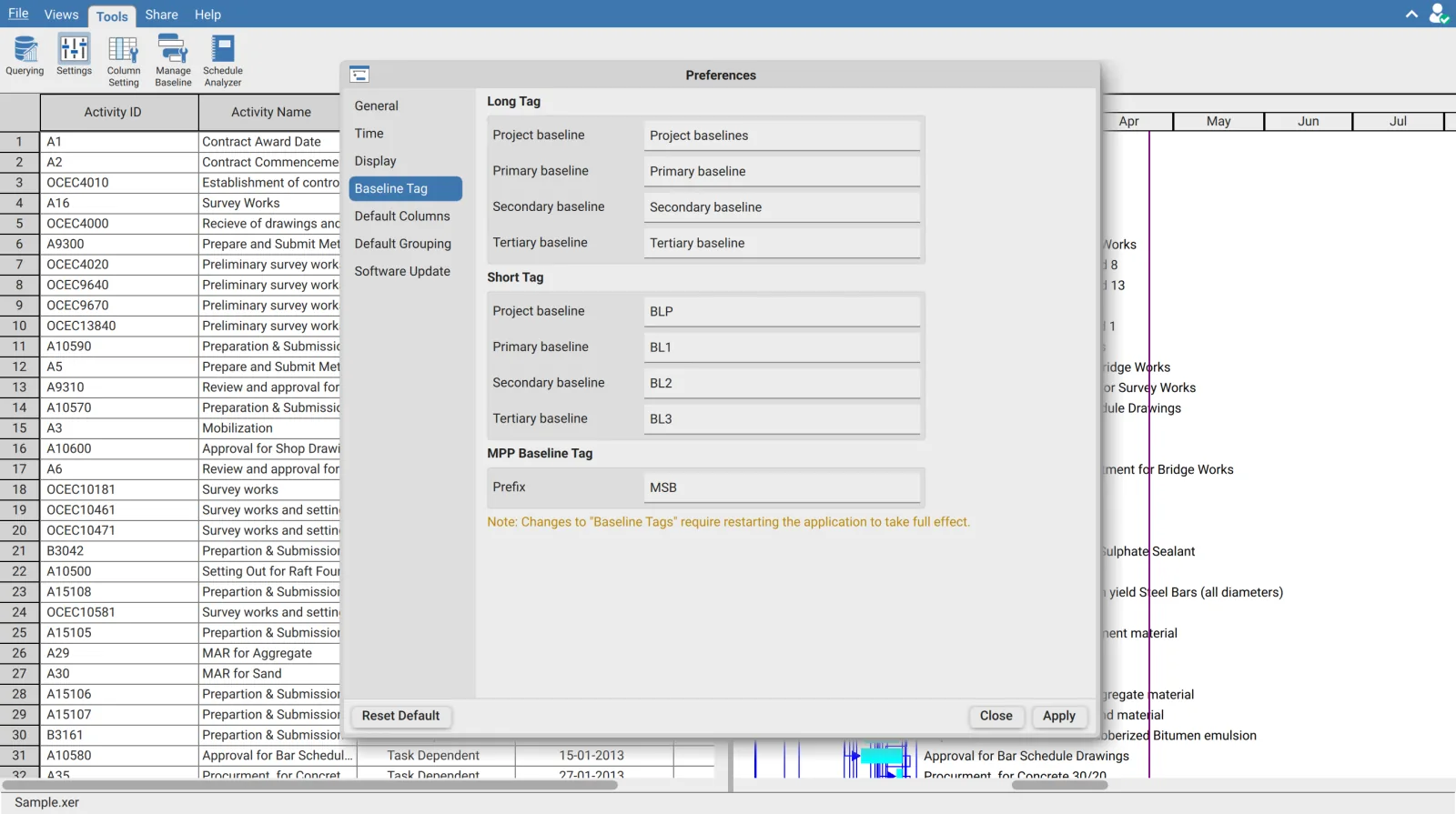
| Baseline | Long tag | Short tag |
|---|---|---|
| First | Project baseline | BLP |
| Second | Primary baseline | BL1 |
| Third | Secondary baseline | BL2 |
| Fourth | Tertiary baseline | BL3 |
MPP Baseline Tag holds a single Prefix, supplied as MSB, used for the baselines carried inside Microsoft Project files.
| Tag | Where it is used |
|---|---|
| Long | The slot labels in Manage Baseline |
| Short | The prefix on baseline columns and on the baseline date fields offered to a Gantt bar time scale |
The short tag is a label, not a slot. Renaming BL1 changes what the columns are called; it does not change which baseline the Schedule Analyzer reads. That is always the first slot, whatever you have named it.
Baseline tags need a restart. The page says so: "Changes to Baseline Tags require restarting the application to take full effect." A short tag is limited to five characters and a long tag to one hundred, and clearing a field puts the supplied name back rather than leaving it blank.
How the Preferences dialog behaves
| Button | Effect |
|---|---|
| Apply | Commits the changes and closes the dialog |
| Close | Discards every change made since the dialog opened |
| Reset Default | Restores the supplied values for the page you are on |
Reset Default is per page, and it does not commit. It puts the current page's values back to what the application ships with, and you still have to press Apply.
Requirements
Requires a signed in account. All three pages are per installation and apply to every schedule you open.