
How to Filter and Sort on a Column
Every column header carries its own sort and filter. Hover the header and click the arrow that appears at its right edge. The popup title names the column it applies to.
Sort
Sort A to Z and Sort Z to A sit at the top of the popup, above the filter tabs. Sorting applies to the column you opened.
Clearing
| Button | Scope |
|---|---|
| Clear Sort & Filter On This Column | Removes both the sort and the filter on the column you opened |
| Clear Sort & Filter On All Columns | Removes every column sort and filter in the table |
Both buttons clear the sort as well as the filter. To keep a sort and drop only the filter, clear the values on the List tab or set the operators back to None on the Expression tab, then click Apply.
List tab: filter by value
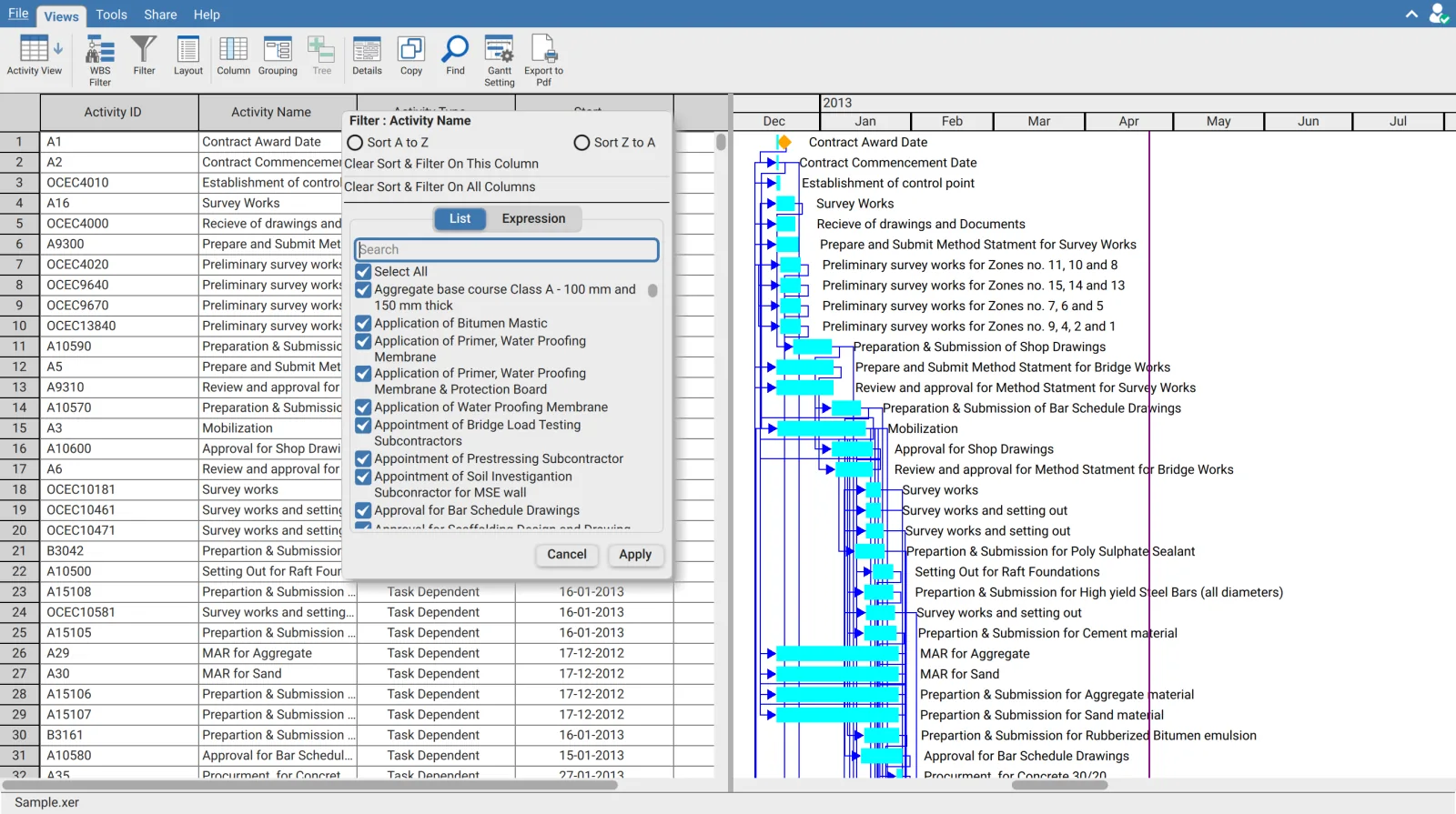
The list holds the distinct values in that column. Clear the values you do not want and click Apply.
| Control | Effect |
|---|---|
| Search | Narrows the list. A schedule column can hold thousands of distinct values |
| Select All | Ticks or clears every value currently listed |
| Select All Search Results | What Select All becomes while a search is active. It applies to the matches only, not the whole column |
| Add Current Selection To Filter | Appears only while a search is active. Keeps the values already ticked and adds the search matches to them instead of replacing them |
Add Current Selection To Filter is the control most people never see, because it is hidden until a search is running. Without it, searching and ticking replaces the earlier selection. With it, several searches can be combined into one filter, which is how you build a filter such as three specific contractors out of two hundred.
Values sit in a tree rather than a flat list, so parent values expand to reveal what sits under them. Date columns present their values as a date tree, which lets a whole month or year be selected in one click rather than tick by tick.
Expression tab: filter by rule
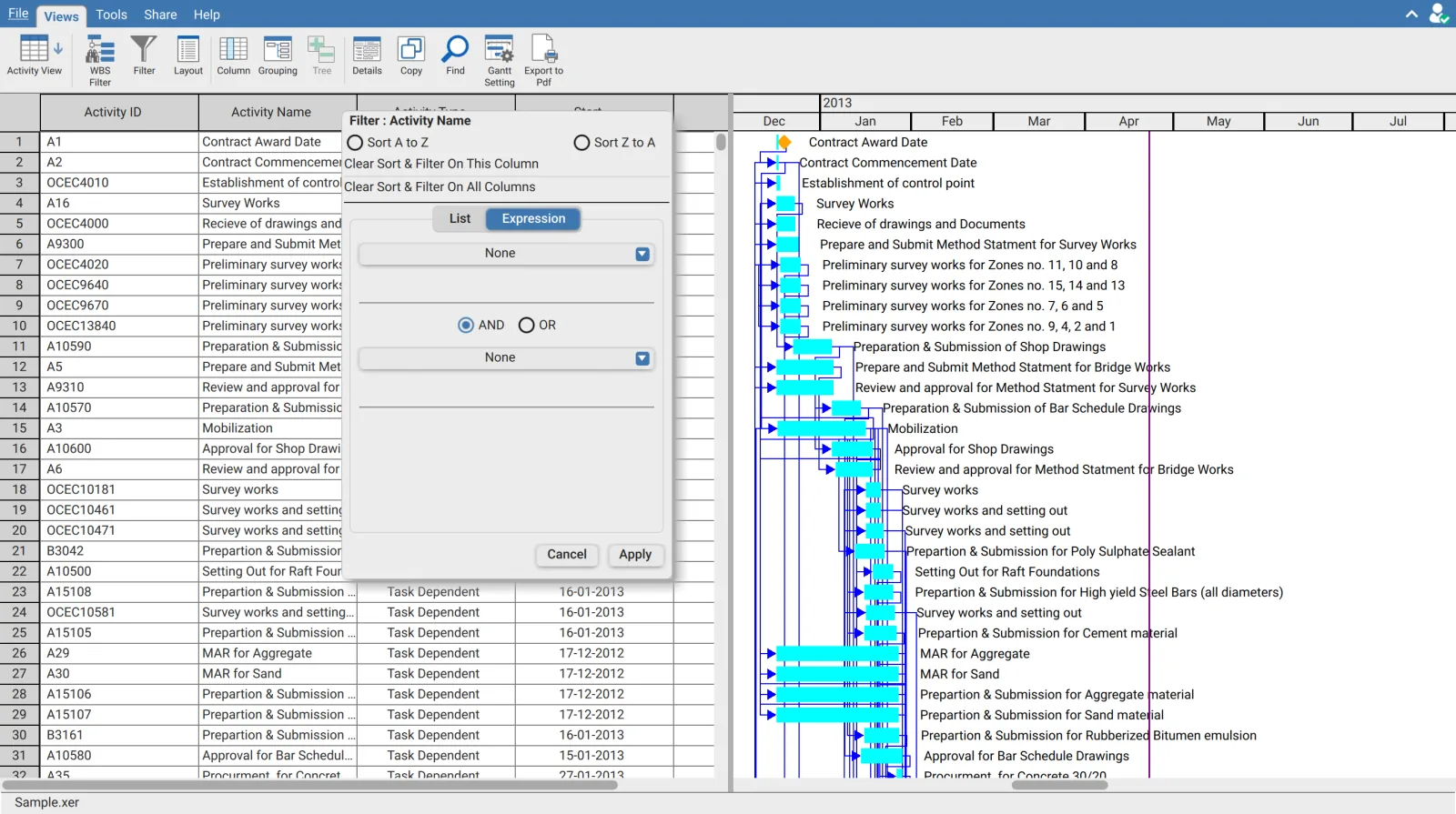
The Expression tab takes up to two conditions. Each is an operator and a value. The radio buttons between them decide how they combine.
| Join | Result |
|---|---|
| AND | An activity must satisfy both conditions |
| OR | An activity satisfying either condition is kept |
Operators by data type
The operators offered depend on what the column holds.
| Column holds | Operators |
|---|---|
| Text | Equals, Does not equal, Begin with, Does not begin with, Ends with, Does not end with, Contains, Does not contains |
| Number | Equals, Does not equal, Is greator than, Is greator than or equal, Is less than, Is less than or equal |
| Date | Equals, Does not equal, Is after, Is after or equal, Is before, Is before or equal |
Leaving an operator set to None disables that condition, which is how a single condition filter is built.
The value field validates by type
The value box accepts only what the column's data type allows, and its placeholder states the expected format.
| Column holds | Placeholder | Accepts |
|---|---|---|
| Whole number | Number | Digits only |
| Decimal | Decimal number | Digits and a decimal separator |
| Date | DD-MM-YYYY | A date in that order |
| Text | No placeholder | Any text |
A date must be typed as DD-MM-YYYY regardless of how dates are displayed in the table. Typing a date in another order is rejected by the field rather than producing a filter that silently matches nothing.
Filters match the stored value
A column filter matches the underlying value, not the text drawn in the cell. A duration displayed as 3d filters as its stored number, and a date filters as a date rather than as the formatted string. This is why an activity can match a filter whose text differs from what the cell shows.
Filters combine across columns
Filters on different columns apply together. Total float less than or equal to zero on one column and a contractor on another leaves the critical activities belonging to that contractor. Use Clear Sort & Filter On All Columns when the row count is lower than expected and it is not obvious which column is responsible.
Only expression filters can be saved
A filter built on the Expression tab can be named and reused from the Filter menu. A filter built by ticking values on the List tab cannot. See Save and manage custom filters.