
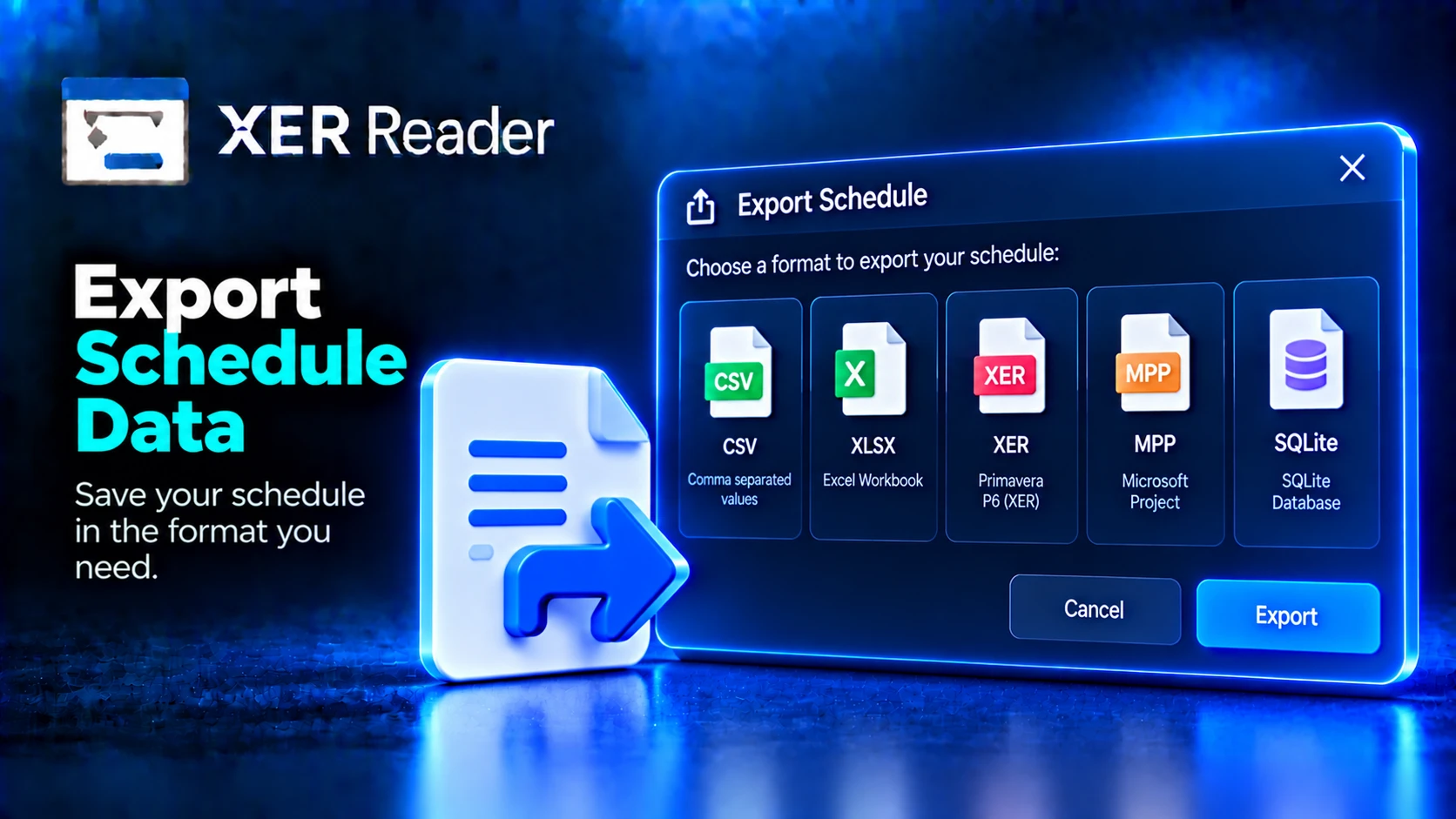
On the Share tab, Export writes schedule data to a file. The formats offered depend on what is being exported.
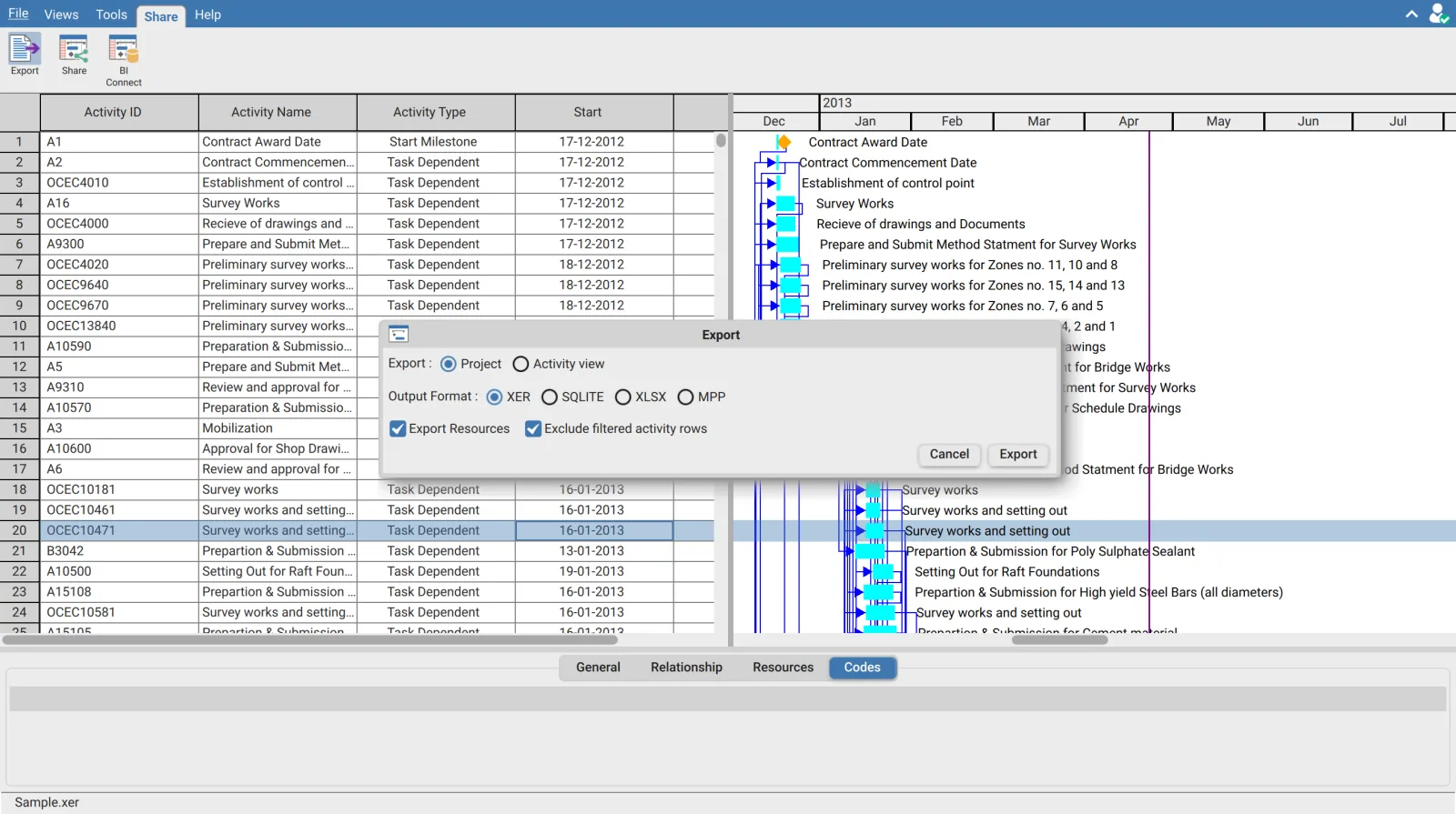
Choose what to export
| Export | Available formats | Covers |
|---|---|---|
| Project | XER, SQLITE, XLSX, MPP | The project as held in the file, including data not shown in the table |
| Activity view | CSV, XLSX | The activity table as configured, with the columns currently displayed |
Export Project selects which project to write when the file holds more than one.
Formats
| Format | Use |
|---|---|
| XER | Back into Primavera P6, or to another P6 user |
| SQLITE | The converted database. The most complete output, and the format the SQL editor reads |
| XLSX | Spreadsheet. Available for both a project and the activity view |
| CSV | Spreadsheet or further analysis. Activity view only |
| MPP | Microsoft Project |
The dialog states that MPP export is in Beta and the exported file should be verified before production use. Open the result in Microsoft Project before relying on it.
Options
| Option | Effect |
|---|---|
| Export Resources | Includes resource data in the output |
| Exclude filtered activity rows | Writes only the activities currently visible |
Exclude filtered activity rows needs a deliberate choice. Selected, the export matches what is on screen, filters and all. Cleared, it covers the whole project regardless of the filters applied. The wrong setting produces a file with the wrong row count and no warning, which is usually noticed only after the file has been sent.
Export compared with Copy
| Export | Copy | |
|---|---|---|
| Output | A file | The clipboard |
| Scope | The whole project, or the activity view | The current selection only |
| Filters | Optional, controlled by the checkbox | Always respects them |
| Columns | Project export covers fields not displayed | The displayed columns only |
See Copy schedule data to a spreadsheet for the clipboard route.
Requirements
Export requires an open schedule and an account entitled to export.
In shared mode the two halves behave differently. Project export is unavailable, while the activity view export to CSV or XLSX remains available. Someone opening a share link can therefore take the table they can see, but not the underlying project file.