
How to Share a Schedule as a Link

On the Share tab, Share publishes a schedule as a link that opens in a browser with nothing installed. The published copy carries the layout as well as the data, so recipients see the columns, grouping and Gantt settings you set up.
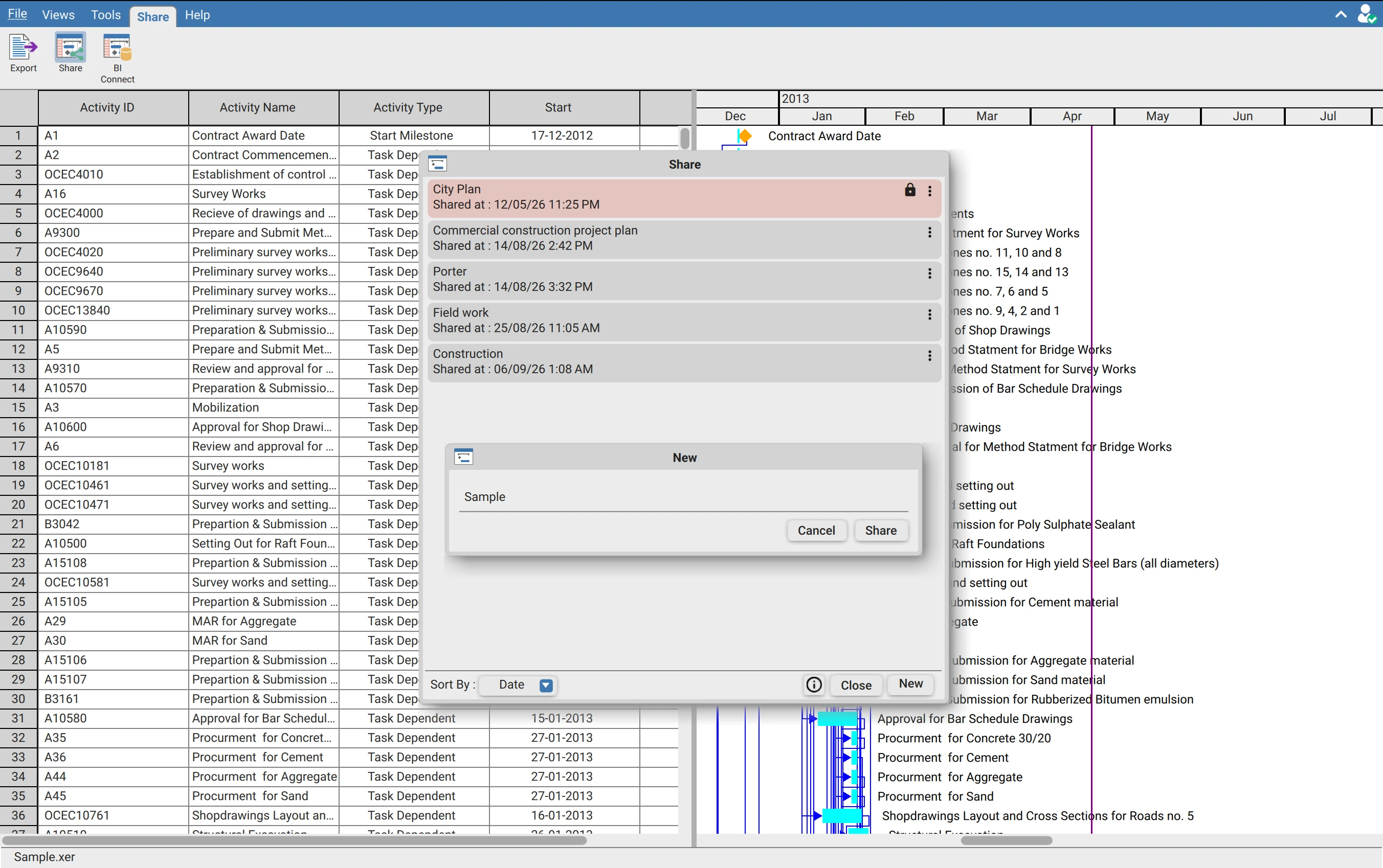
Create a share
Set up the view first. Columns, grouping, filters and Gantt settings are published with the schedule.
Click Share, then New.
Type a Name. It identifies the share in your list and is not shown to the recipient.
Click Share.
A name is required. Leaving it empty highlights the field instead of creating the share.
The large layout warning
If a column carries a large number of distinct filter values, a message appears before the share is created, naming the column and stating that the shared layout will be large. Click Continue to proceed or cancel and clear that column's filter first.
Managing a share
| Action | Effect |
|---|---|
| Copy link | Places the URL on the clipboard |
| View in browser | Opens the published view |
| Load into application | Opens the shared schedule back in XER Reader |
| Update with current | Republishes with the schedule and layout as they now stand |
| Rename | Changes the name in your list |
| Edit | Changes the share settings |
| Set password | Requires a password to open the link |
| Change password | Replaces the password. Shown in place of Set password once one exists |
| Remove password | Allows the link to open without one. Shown only when a password is set |
| Delete | Revokes the link |
Each share shows when it was created, and Sort By orders the list.
A share is a snapshot
Changes made in the application do not reach a published link. The recipient sees the schedule as it was when the share was created or last updated. Use Update with current after a progress update, otherwise the link quietly serves an old programme.
What recipients see
Opening a share link gives the application in shared mode. The schedule is readable with the layout you published, and features that change or publish data are unavailable.
| In shared mode | Available |
|---|---|
| Reading the schedule, columns, grouping and Gantt | Yes |
| Export of the activity view to CSV or XLSX | Yes |
| Export of the project to XER, SQLITE or MPP | No |
| Share, BI Connect, Manage Baseline, Querying | No |
A share link is a published copy of your schedule. Anyone holding the link, and the password if one is set, can open it. Delete is what revokes access.
Requirements
Requires a signed in account entitled to sharing. Unavailable in shared mode, so a recipient cannot reshare.