
How to Set the Time Unit and Duration Abbreviations
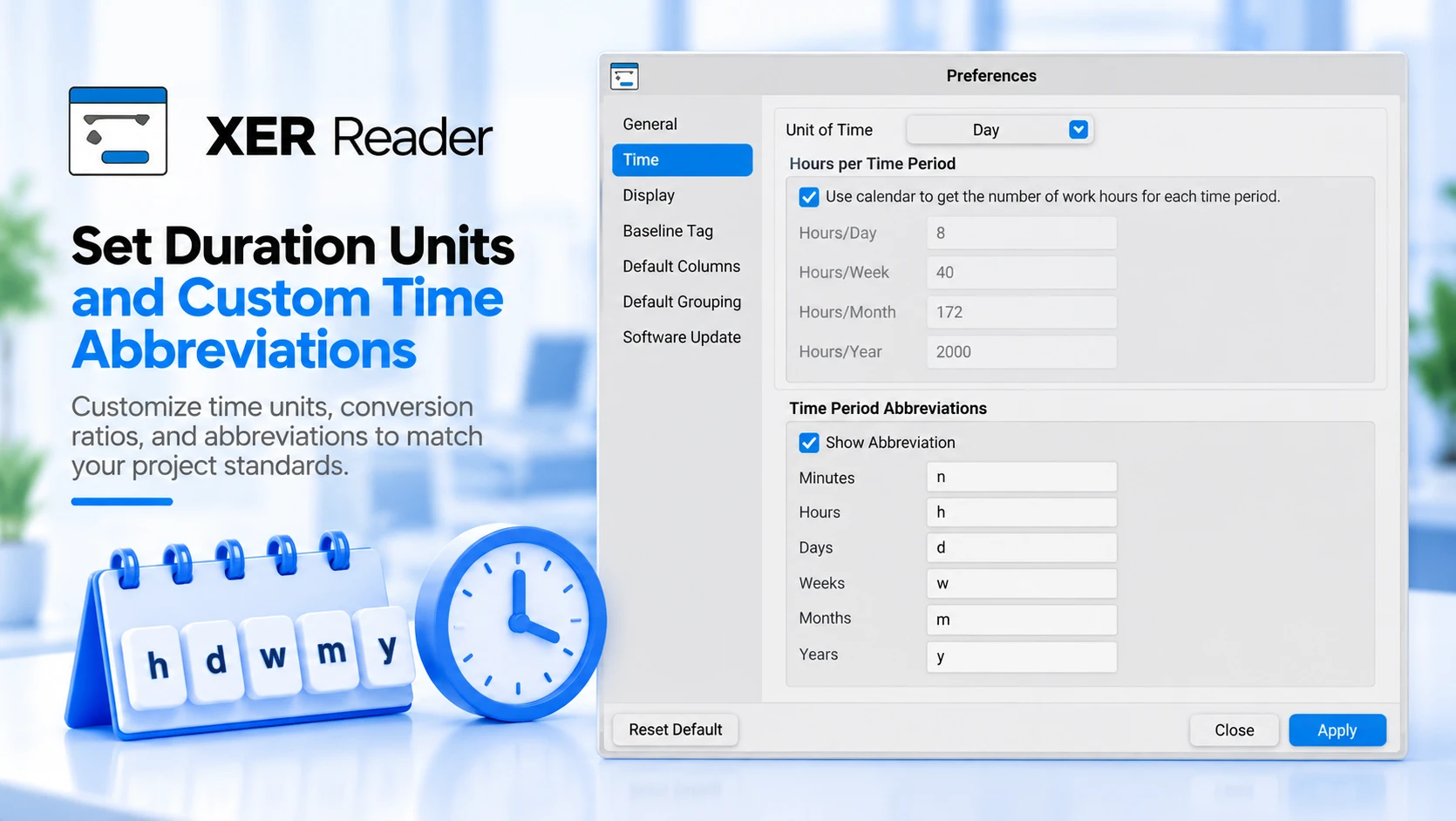
The Time page of Preferences decides the unit every duration and unit figure is reported in, and how hours convert into it. It is on the Tools tab, under Settings.
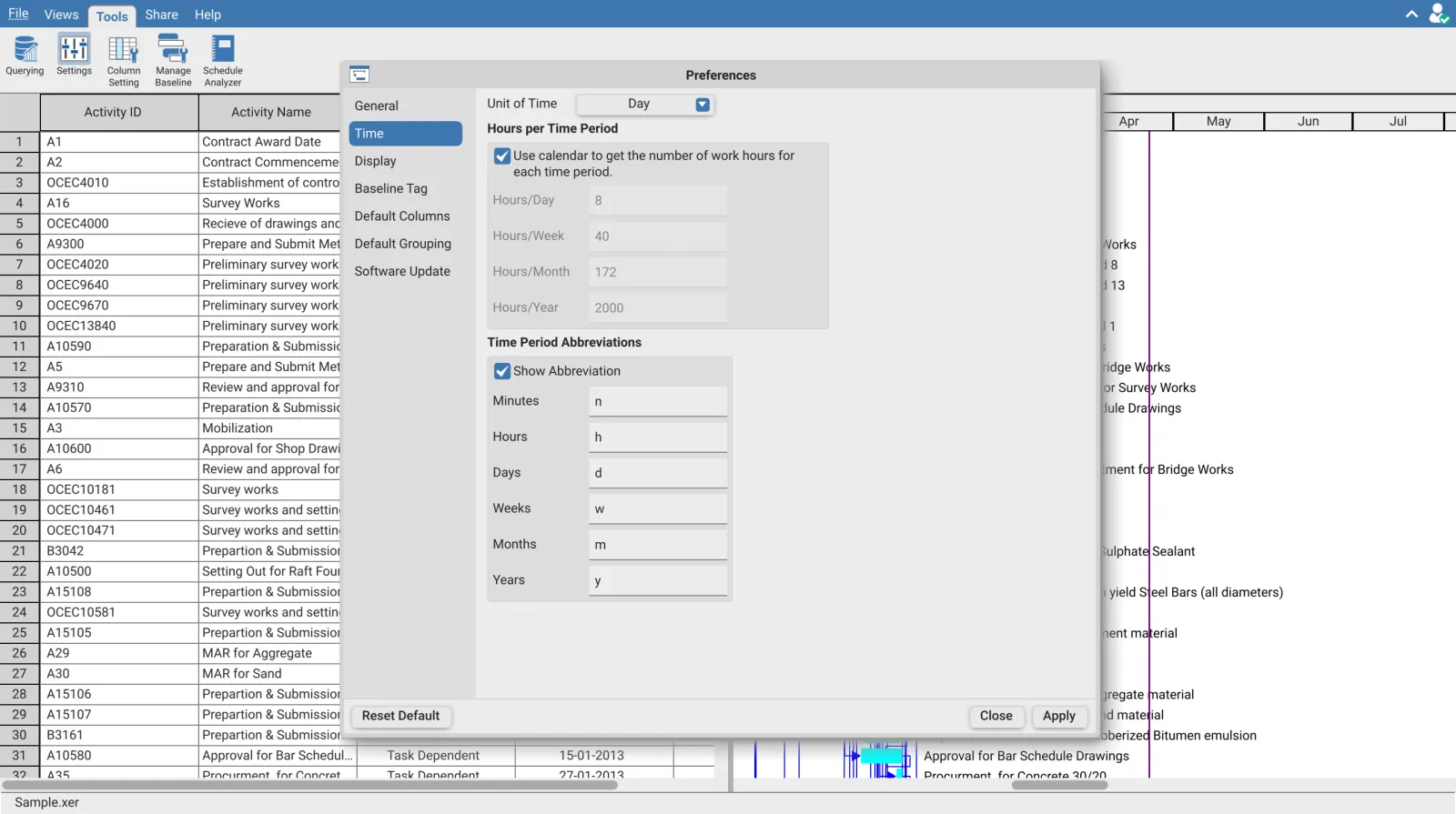
Unit of Time
Hour, Day, Month, Week or Year, supplied as Hour. This is the unit durations and units are written in throughout the application.
This setting rewrites figures you may be comparing against P6. Original durations, remaining durations, total float and the resource usage grid all report in whatever is set here. A total float of 40 hours reads as 40 h under Hour and as 5 d under Day. Nothing in the schedule has changed; only the unit it is printed in. Check this page before concluding a duration does not match the source.
Hours per Time Period
Converting hours into days, weeks, months and years needs a rate. Two ways to supply it.
| Setting | Effect |
|---|---|
| Use calendar to get the number of work hours for each time period | The activity's own calendar supplies the conversion |
| Unticked | The four fixed values below are used for every activity |
The checkbox is supplied ticked, which greys the four boxes out. Untick it to edit them.
| Field | Default | Accepts |
|---|---|---|
| Hours/Day | 8 | 1 to 24 |
| Hours/Week | 40 | 1 to 168 |
| Hours/Month | 172 | 1 to 744 |
| Hours/Year | 2000 | 1 to 8784 |
The calendar option is the accurate one and the fixed values are the predictable one. With the calendar in charge, two activities of the same 40 hours can report different day counts because they run on different calendars, which is correct but harder to reconcile against a printed report. With it unticked every activity converts at the same rate. Choose the one that matches whatever you are checking against, and be aware that switching changes every duration on screen.
Time Period Abbreviations
Show Abbreviation decides whether the unit letter follows the number. It is supplied ticked, and unticking it greys out the six fields and prints bare numbers.
| Field | Default |
|---|---|
| Minutes | n |
| Hours | h |
| Days | d |
| Weeks | w |
| Months | m |
| Years | y |
Each is free text, so a team that writes days as dy or hours as hrs can set that here and have every duration in the application match its own reporting.
Turning abbreviations off makes two different units look identical. With the letter gone, a figure reading 5 could be five days or five hours depending on the unit above, and nothing on screen says which. Leave it on unless you are exporting into something that does its own formatting.
How the Preferences dialog behaves
| Button | Effect |
|---|---|
| Apply | Commits the changes and closes the dialog |
| Close | Discards every change made since the dialog opened |
| Reset Default | Restores the supplied values for the page you are on |
Reset Default is per page, and it does not commit. It puts the current page's values back to what the application ships with, and you still have to press Apply.
Requirements
Requires a signed in account. The settings are per installation and apply to every schedule you open.