
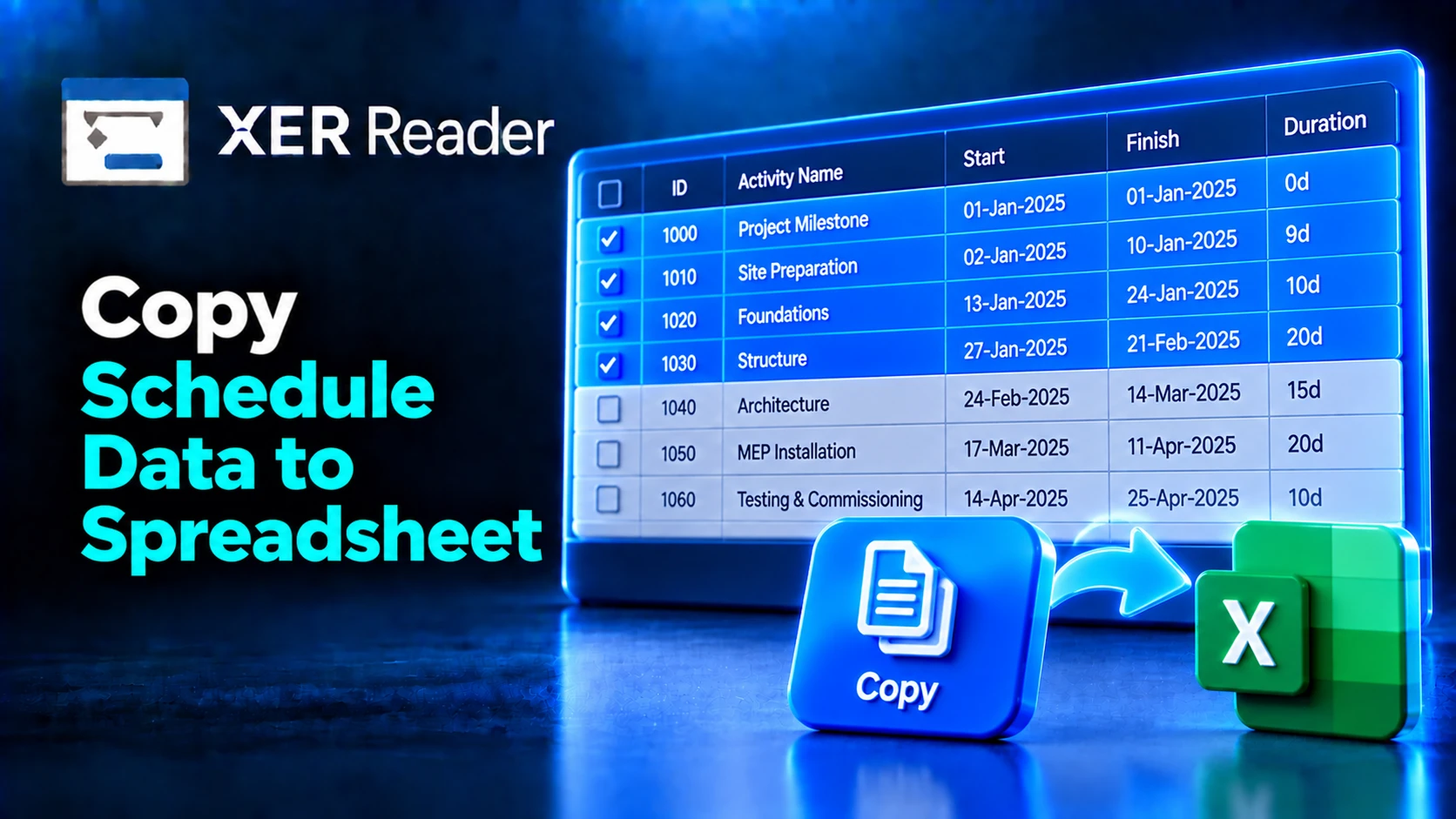
Copy places the selected part of the activity table on the clipboard in a form that pastes into a spreadsheet. What you get depends entirely on what you select first.
Five ways to select
| Selection | How | Result |
|---|---|---|
| One cell | Click the cell | That cell only |
| A block of cells | Click a cell, then hold Shift and click another | The rectangle between the two cells, across both rows and columns |
| A row | Click the row number in the narrow left hand header | The whole activity, every displayed column |
| A range of rows | Click a row number, then hold Shift and click another | Every activity between the two, inclusive |
| A column | Click the column header | That column for every activity in the table |
| A range of columns | Click a column header, then hold Shift and click another | Every column between the two, inclusive |
| The whole table | Click the empty corner cell above the row numbers and left of the first column header | Every activity and every displayed column |
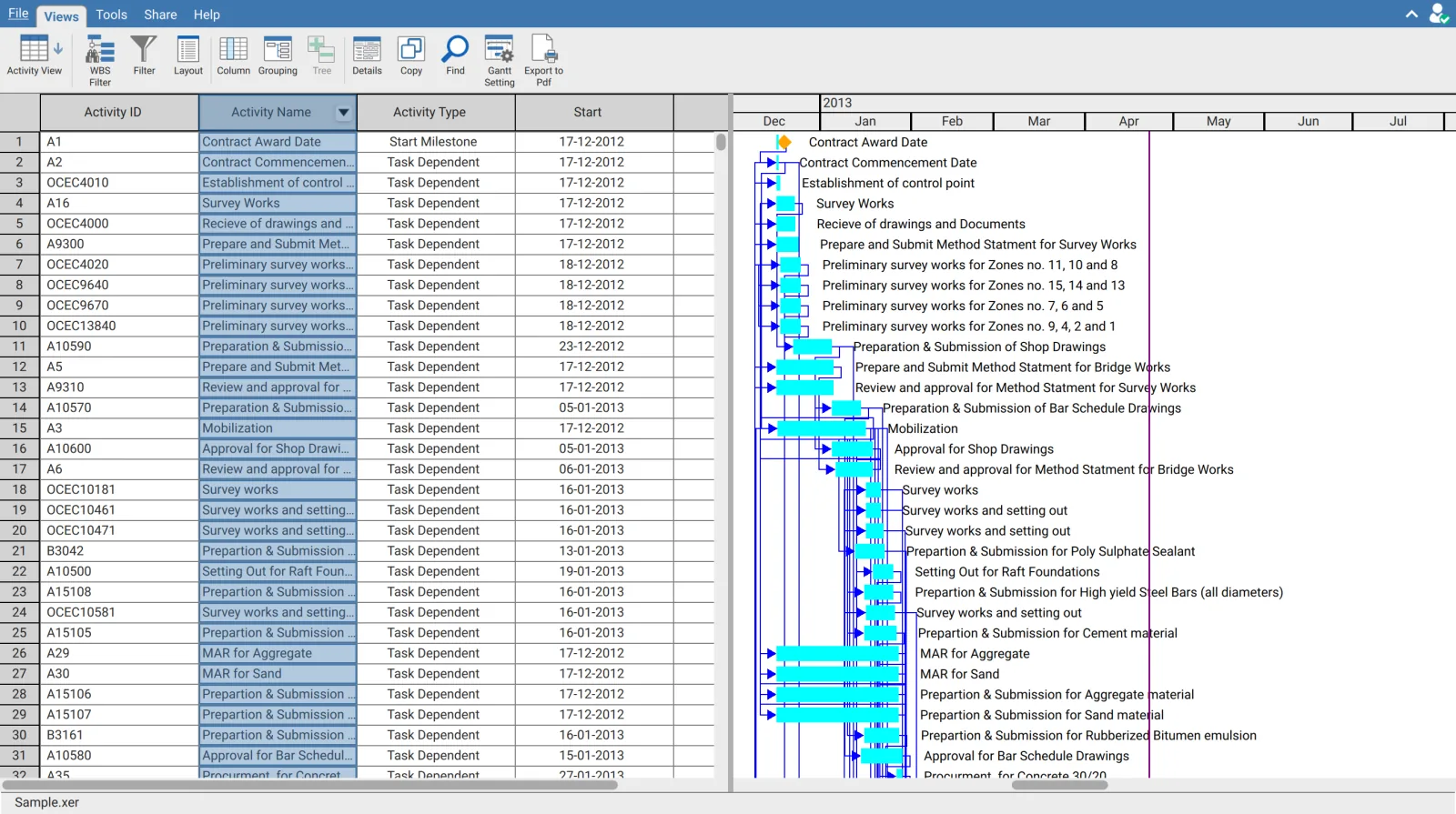
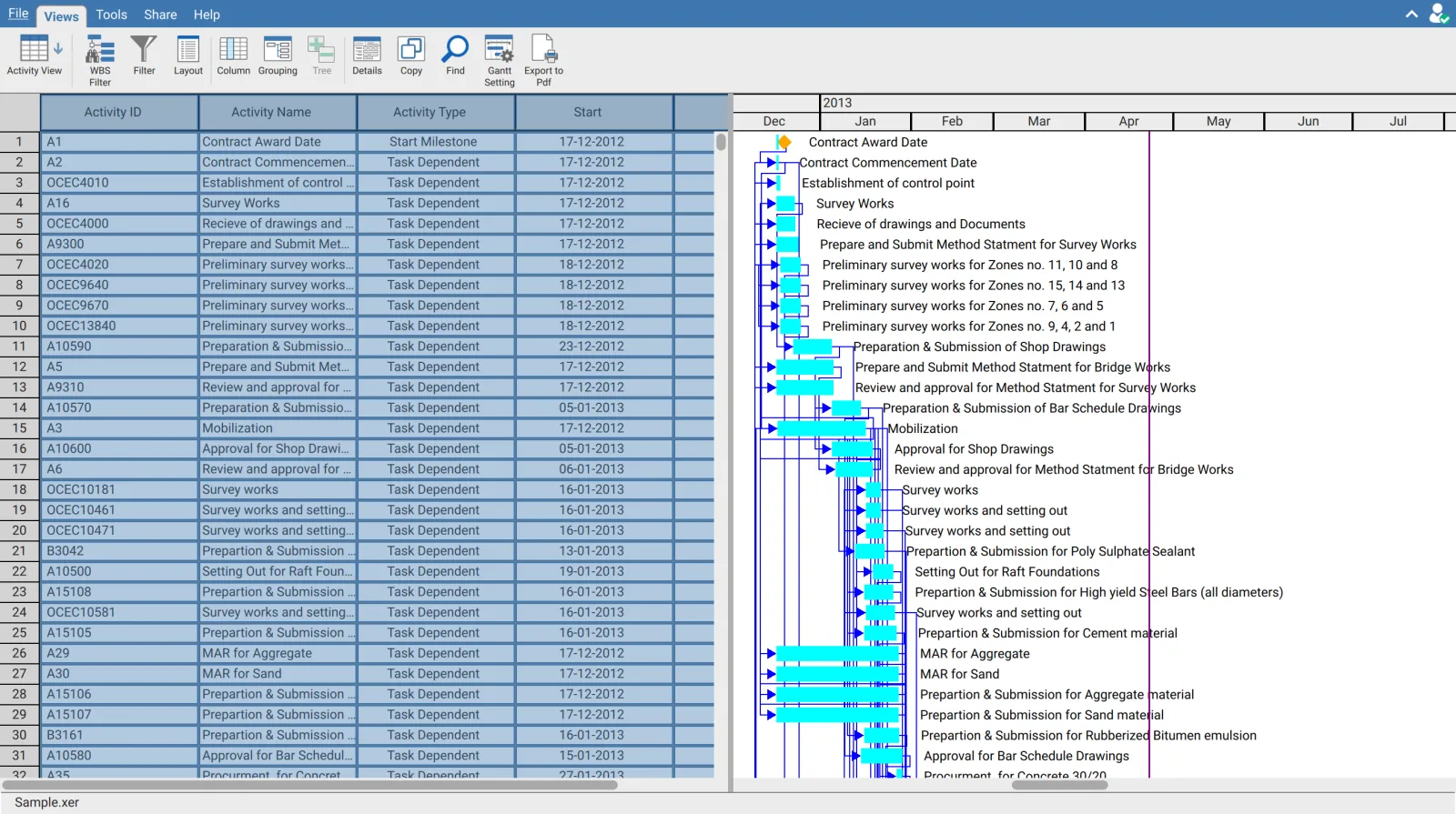
Column headers are not always copied
Whether the column names appear at the top of the paste depends on how the selection was made.
| Selected by | Column headers in the paste |
|---|---|
| Column header, or a range of columns | Included |
| The corner cell, meaning the whole table | Included |
| Row number, or a range of rows | Not included |
| A cell, or a block of cells | Not included |
This is the detail that catches people out. Selecting 500 activities by their row numbers gives 500 rows of values with no header line. Select by clicking the corner cell, or by column, when the paste needs column names.
Copy
Set up the columns first. Copy takes the columns currently displayed, not every field held in the schedule. See Customize activity columns and data fields.
Make the selection.
On the Views tab, click Copy.
Paste into the spreadsheet.
Copy reflects the current view
Copy works on the table as it stands. Filtered out activities are not copied, hidden columns are not included, and a grouped table copies its group rows along with the activities. If a group is collapsed its activities are not on screen and are not copied.
To write a whole project to a file regardless of filters, use Share then Export, which offers XER, SQLITE, XLSX, MPP and CSV. See Export schedule data.
Copying from other views
Copy is also on the Resource Assignment ribbon and behaves the same way there, taking the selection with the columns that view is displaying.