

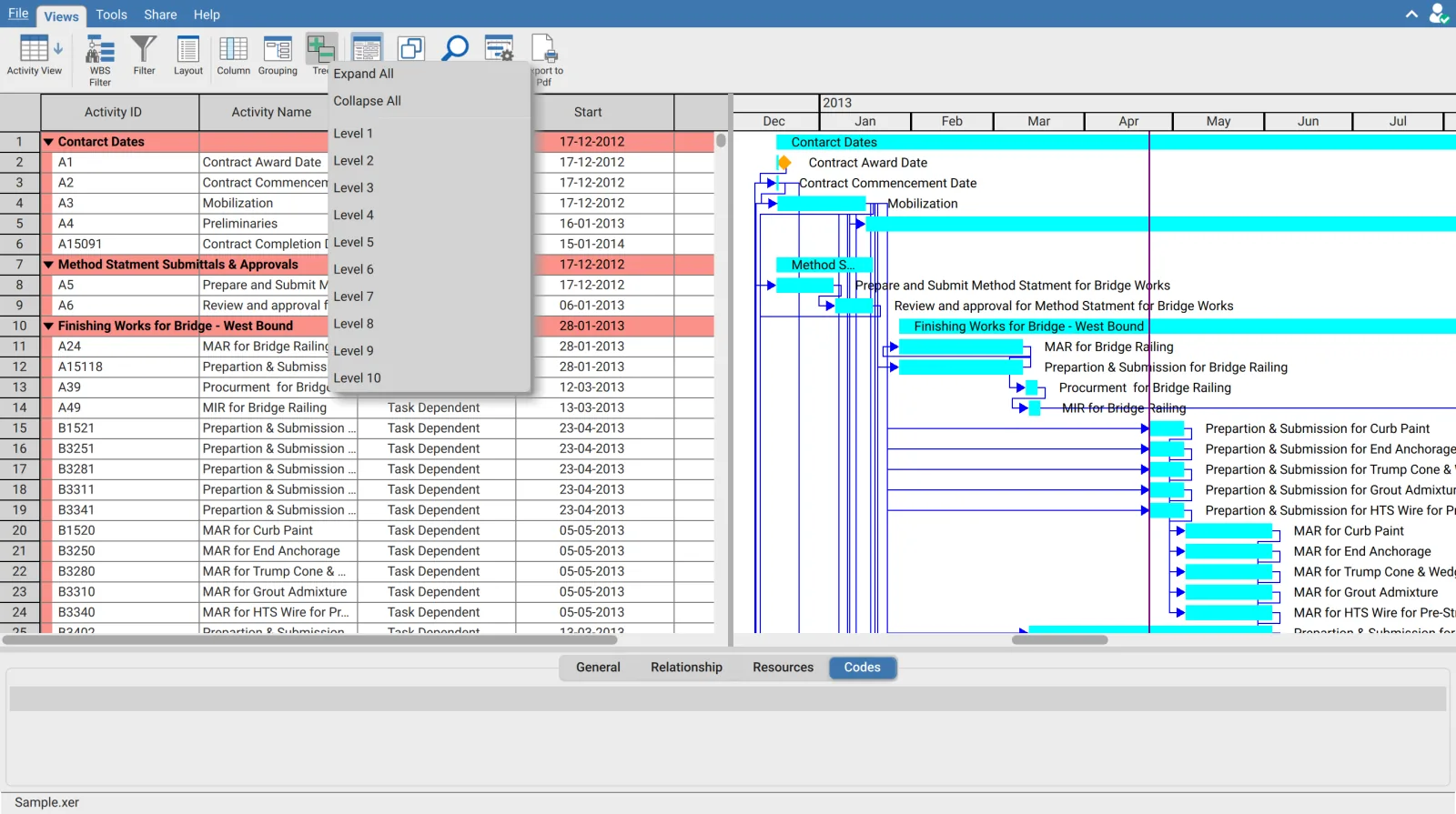
The Tree button expands and collapses the grouped hierarchy across the whole schedule at once.
| Item | Effect |
|---|---|
| Expand All | Opens every level |
| Collapse All | Closes everything to the top level |
| Level 1 to Level 10 | Expands to exactly that depth and closes anything deeper |
Tree is disabled until grouping is applied. Without grouping the table is a flat list and there is no hierarchy to expand. Set up grouping first. See Group activities by WBS, activity codes and dates.
Choosing a depth
Expanding to a level is the quickest way to read a deep WBS. Level 2 or Level 3 usually shows phases and their sections without listing individual activities.
This is not the same as grouping to a level. Level 2 on the Tree menu expands an existing hierarchy to two levels while the deeper groups remain, collapsed. The Rule column in the Group Manager set to Level 2 builds only two levels in the first place, and the deeper ones do not exist.
Table and Gantt move together
Both share one row list, so expanding or collapsing changes both. A collapsed group hides its bars as well as its rows.
What collapsing affects
| Feature | Effect of a collapsed group |
|---|---|
| Copy | Activities inside a collapsed group are not on screen and are not copied |
| Export to PDF | The PDF matches the table, so collapsed groups print collapsed |
| Export with Exclude filtered activity rows | Applies to filters rather than collapsed groups |
The Tree button in other views
The Resource Assignment view has its own Tree button that works the same way on that view's grouping.