

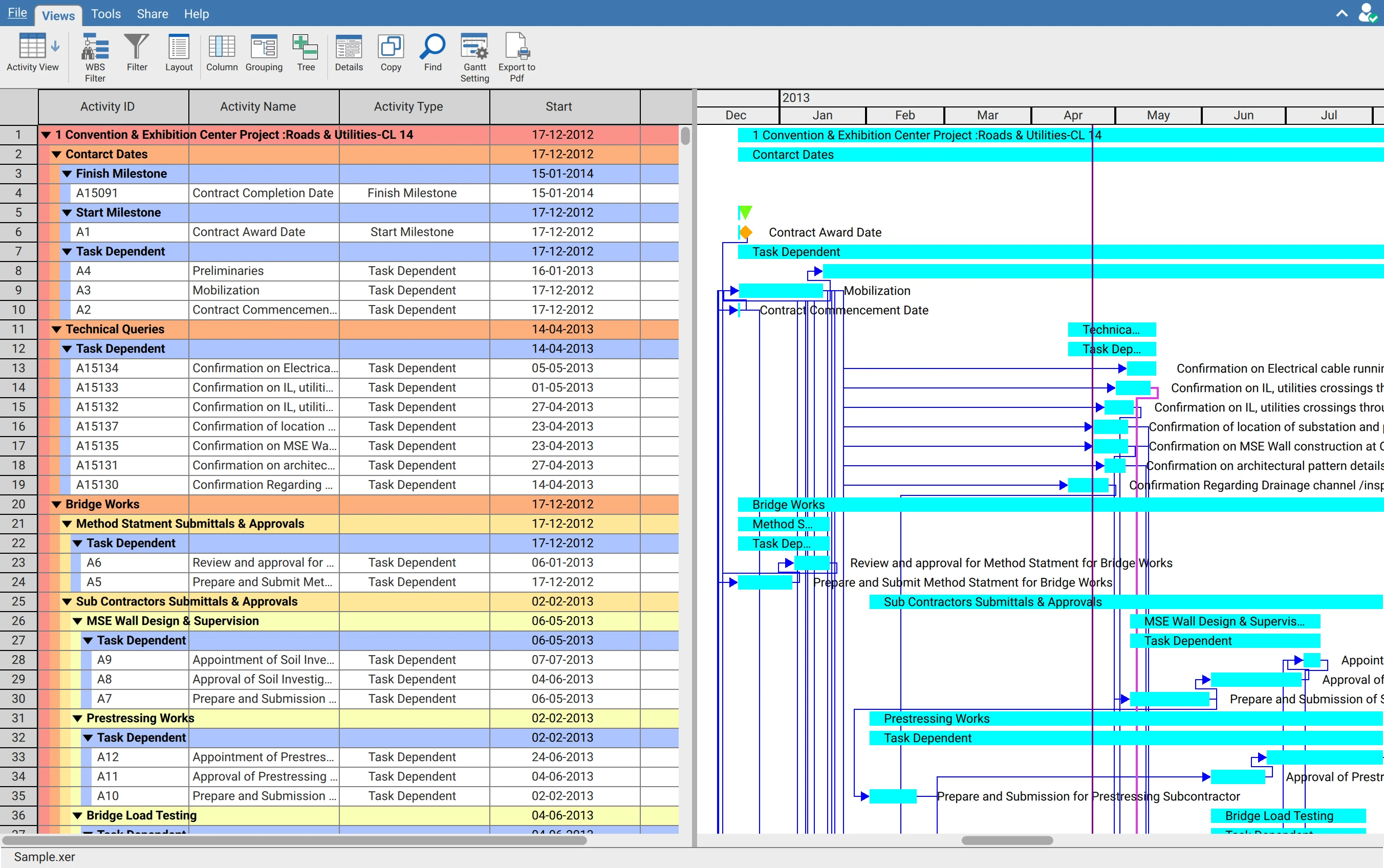
Grouping gathers activities into collapsible group rows. Rules stack, so the first rule forms the outer level and each rule below nests inside it. Up to 20 levels can be defined.
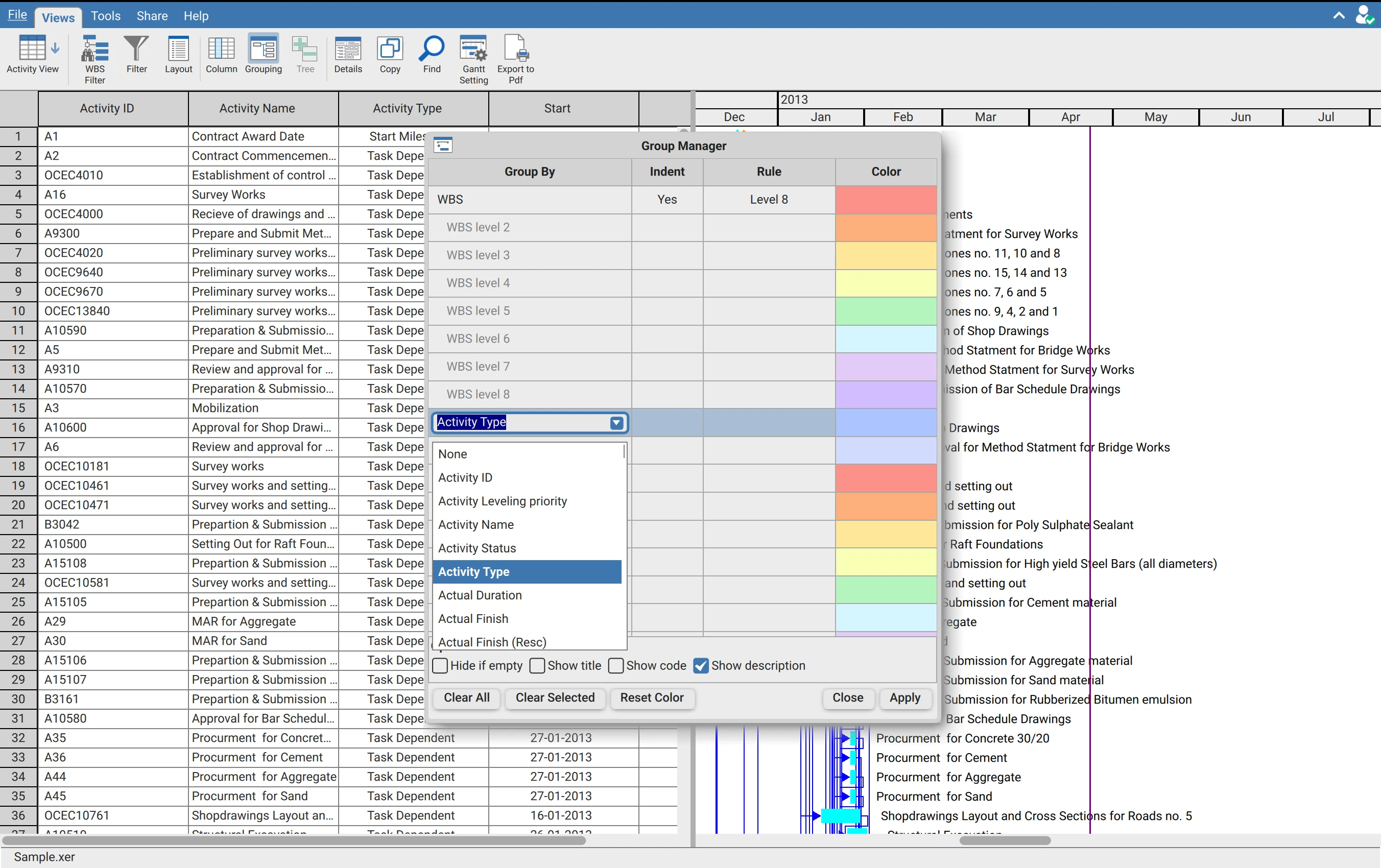
Build the hierarchy
On the Views tab, click Grouping.
Click the first row under Group By and select a field, for example WBS.
Click the next row and select a second field, for example Activity Type or an activity code.
Click Apply.
The four columns
| Column | Controls |
|---|---|
| Group By | The field to group on |
| Indent | Whether a hierarchical field is indented level by level, rather than flattened into one row per value |
| Rule | How the values are bucketed. The options depend on the field type, and the column is empty for fields that need no rule |
| Color | The banding colour for that level |
Rule: how values are bucketed
The Rule column is the part of the dialog most easily overlooked, and it changes what grouping by a field actually produces.
Date fields
Grouping by a date field, such as Start or Finish, buckets the activities by period rather than by individual date.
| Rule | Produces |
|---|---|
| Day | One group per calendar day |
| Week | One group per week |
| Month | One group per month |
| Quarter | One group per quarter |
| Year | One group per year |
Without a rule, grouping by a date field would create a separate group for every distinct date in the schedule. Month or Quarter is what turns a start date into a usable reporting structure.
Hierarchical fields
A field with its own hierarchy, such as WBS, offers a depth rule instead.
| Rule | Produces |
|---|---|
| All Level | The full breakdown structure, every level |
| Level 1, Level 2 and so on | Groups down to that depth only, with everything below collapsed into it |
Level 1 or Level 2 on a deep WBS gives a summary by major area without the lower levels. This is a different result from collapsing the tree, because the deeper levels are not created at all rather than merely hidden.
Options
| Option | Effect |
|---|---|
| Hide if empty | Omits groups containing no activities, which matters when a filter has emptied most of them |
| Show title | Adds the field name to the group row |
| Show code | Shows the short code value |
| Show description | Shows the descriptive text |
Show code and Show description apply to activity codes, where each value carries both a code and a description. Different teams read one or the other, and both can be shown together.
Buttons
| Button | Effect |
|---|---|
| Apply | Rebuilds the table with the current rules |
| Clear Selected | Removes the highlighted rule and leaves the others |
| Clear All | Removes every rule and returns the table to a flat list |
| Reset Color | Restores the default banding colour for the selected level |
| Close | Closes the dialog |
Group rows are summaries
A group row represents the activities beneath it rather than being an activity itself. Only fields that can be summarised show a value, such as a total for a quantity or the earliest date for a start. Fields with no meaningful summary are blank by design rather than missing data.
What grouping affects elsewhere
| Feature | Effect |
|---|---|
| Tree | Disabled until grouping is applied, since there is no hierarchy to expand without it |
| Copy | Copies group rows along with the activities. A collapsed group is not on screen and is not copied |
| Layouts | Grouping is stored in a layout and reapplies to the next schedule opened |
| Resource Assignment | Has its own Grouping button. Grouping by resource is the usual starting point there |
Large schedules
Grouping a large schedule runs in the background and the table stays usable while it works. Changing the rules again before it finishes discards the pending result rather than queueing it, so adjusting rules repeatedly costs nothing.