
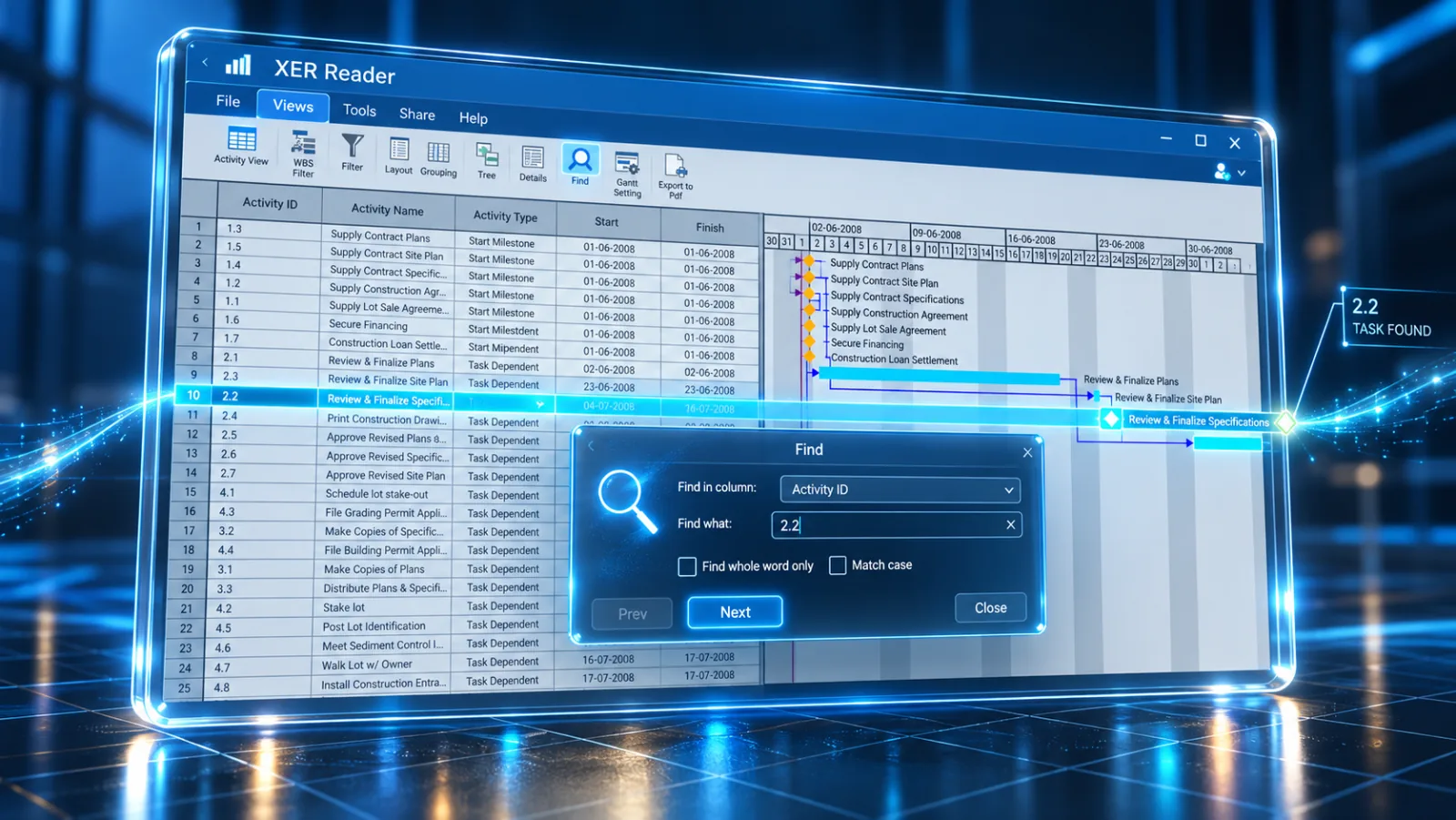
When working with mega-project schedules containing 50,000 or more activities, locating specific tasks quickly is critical. XER Reader provides a native, in-memory Find tool designed to locate any activity instantly by ID, Name, or date without sluggish search indexing or UI freezing.
1. Opening the Find Dialog
To start searching, navigate to the Views or Tools tab on the top ribbon toolbar and click the Find button (magnifying glass icon). The floating Find dialog opens above your active workspace.

2. Step-by-Step Search Workflow
-
Target a Column: In the Find in column: dropdown, select the specific field you want to search through (such as
Activity ID,Activity Name, orStart Date). Limiting your search to a single column significantly speeds up search queries across massive schedules. -
Enter the Search Query: Type your target value into the Find what: text field (e.g.,
A10590,Foundation, orConcrete). -
Configure Search Precision:
- Check Find whole word only when searching for exact activity IDs or milestone codes to avoid matching longer partial strings.
- Check Match case if your project coding uses case-sensitive identifiers.
-
Navigate Matches: Click Next to step forward (downwards) through the schedule to the next match, or click Prev to step backwards (upwards) to the preceding occurrence.
When a match is found, XER Reader automatically selects the activity row, scrolls the Activity Table directly to that item, and synchronizes the Gantt timeline to bring the corresponding task bar into view.
3. Find Dialog Options Reference
| Control | Function | Best Practice for Large Schedules |
|---|---|---|
| Find in column: | Dropdown menu listing all visible columns in the active schedule view. | Select Activity ID when hunting down engineering query references or delay claims. |
| Find what: | Text field retaining your most recent search term across sessions. | Supports text strings, numbers, and date patterns formatted according to your display settings. |
| Find whole word only | Restricts results to complete words, ignoring partial substrings. | Prevents short IDs like A10 from matching A100, A1010, or A10590. |
| Match case | Enforces strict uppercase and lowercase matching. | Useful when distinguishing between discipline prefixes (e.g., CIV vs civ). |
| Next / Prev | Directional navigation buttons to cycle forward and backward. | Allows rapid audit cycling through repeated contractor work packages. |
| Close | Dismisses the Find dialog while preserving the selected row. | Re-opening the dialog restores your last search query automatically. |
If you need to view all matching activities together rather than stepping through them one-by-one with Next and Prev, use the Filter tool on the ribbon toolbar instead. Filtering collapses the schedule to display only matching rows simultaneously.