

The Trace Logic tab of the details panel draws the logic around the selected activity: the activity in the middle, its predecessors to the left and its successors to the right, as boxes joined by relationship lines.
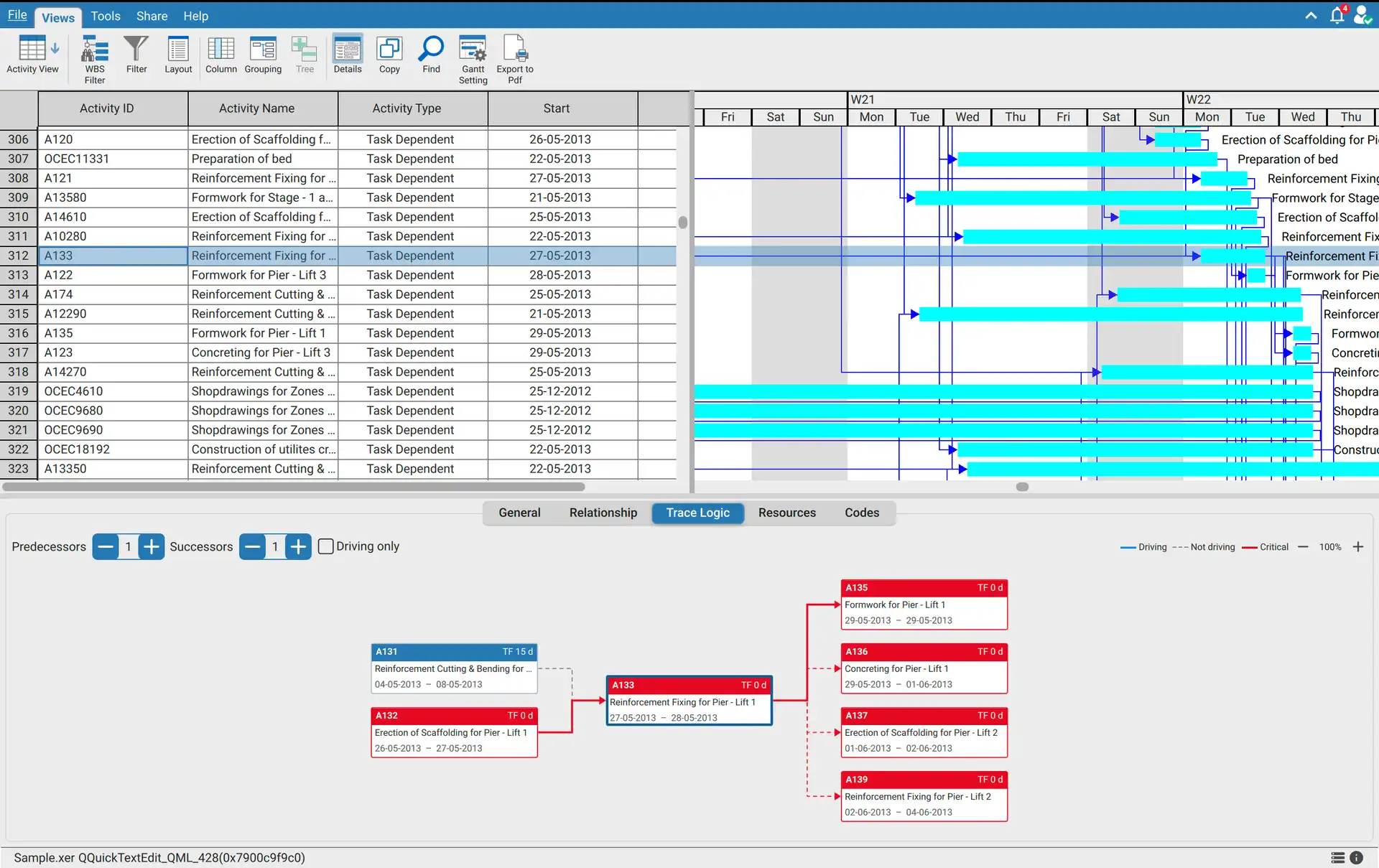
Trace an activity
- On the Views tab, click Details to open the details panel.
- Click the Trace Logic tab.
- Select an activity in the activity table. The drawing follows the selection.
- Set Predecessors and Successors to the number of links to follow each way, from 0 to 10.
- Tick Driving only to follow only the relationships that set each activity's dates. With several levels of predecessors, that is the driving path into the activity.
The levels and Driving only are kept for the next time you open a schedule.
Reading the drawing
| Element | Meaning |
|---|---|
| Box | Activity ID and total float on the header, then the name, start and finish. A milestone shows its one date |
| Red header | The activity is critical, by the project's own rule or the one set on the Calculations page of Preferences |
| Grey box | The activity is complete |
| Project in brackets | The activity belongs to another project, named before its activity name |
| Solid blue line | The relationship drives its successor |
| Dashed grey line | The relationship does not drive |
| Red line | Both activities are critical |
| Label on a line | The type and lag of any relationship other than FS with no lag, for example SS 2d |
Working in the drawing
| Action | Result |
|---|---|
| Click a box | Lights up its relationships and the boxes at their other ends. Click the background to clear it |
| Double click a box | Selects that activity in the activity table and moves the trace to it, so a path can be walked one activity at a time |
| Rest the pointer on a box | Shows the full name, status, start, finish and total float |
| Rest the pointer on a line | Lights the line up and names it: both activities, the type, the lag and whether it drives |
| Zoom buttons | Zoom from 50% to 160%. Click the percentage to return to 100% |
If the activity table does not show the activity you double click, for example because a filter hides it, a message says so and the trace stays where it is.
What counts as driving
Driving follows each project's own scheduling options: the calendar its lags are counted on, and how it schedules out of sequence progress. Microsoft Project files follow Microsoft Project's own rules. The Driving column of the Relationship tab gives the same answer for every relationship.
The drawing stops at 150 activities and says so. A busy activity reaches that within two or three links, and fewer levels show everything. Each activity is drawn once, at the level nearest the middle, and a relationship that loops back toward the middle is left out.
The same logic elsewhere
The Relationship tab lists the same relationships one link each way, with their dates and lags. The Network Diagram view draws the whole schedule as a network.
Requirements
Requires an open schedule and a signed in account.