

The Display page of Preferences holds two settings that change how the application looks rather than what it shows. It is on the Tools tab, under Settings.
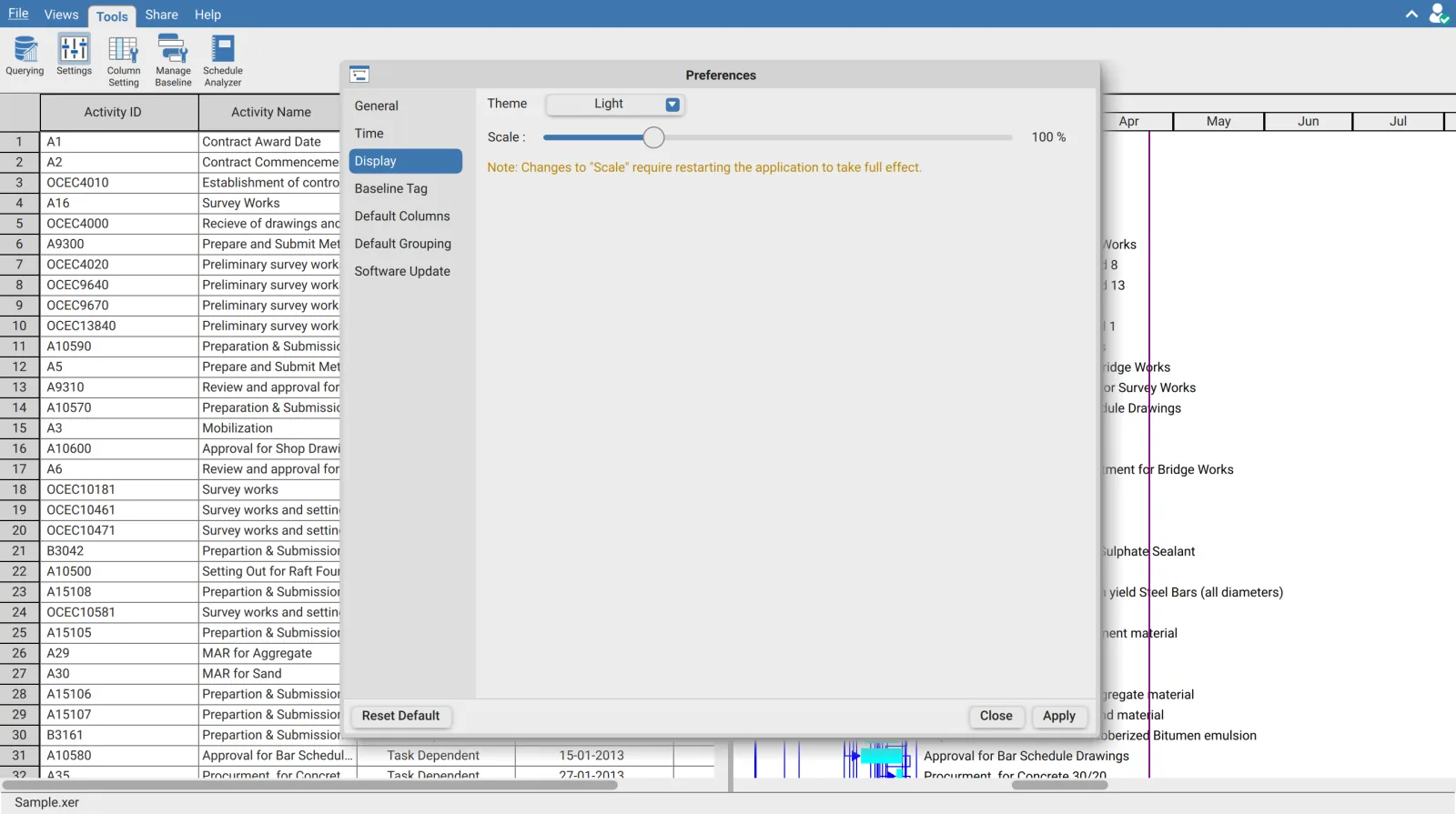
Theme
| Option | Effect |
|---|---|
| System | Follows the operating system's light or dark setting |
| Dark | Always dark, whatever the system is set to |
| Light | Always light, whatever the system is set to |
System is the supplied setting. On macOS the application also updates the window frame to match, so the title bar changes with the theme rather than staying light over a dark window.
The theme reaches the charts and the exported PDF, not just the panels. The Schedule Analyzer charts, the S-Curve and the Network Diagram all read the theme to pick their grid, label and axis colours. The PDF export has its own separate PDF Theme setting, so a dark interface does not force a dark PDF.
Scale
The slider resizes the entire interface, from 80% to 170%, in steps of one percent, with the current value shown beside it.
This is a scale factor applied to every measurement in the interface, not a font size. Rows, toolbars, dialogs, column widths and the Gantt chart all grow or shrink together, which is the point: raising it on a high resolution display makes everything legible without leaving the table cramped, and lowering it fits more rows on screen.
Scale needs a restart. The page says so itself: "Changes to Scale require restarting the application to take full effect." Some of the interface picks up the new value immediately and some does not, so the half applied state after pressing Apply is not what the setting actually looks like. Restart before deciding whether the value is right.
Reset Default on this page resets both settings. Theme and scale are stored in two different places internally, and the button puts both back at once. If you only wanted to undo the scale, set the theme back by hand afterwards.
How the Preferences dialog behaves
Seven pages sit down the left. The footer is the same on every one.
| Button | Effect |
|---|---|
| Apply | Commits the changes and closes the dialog |
| Close | Discards every change made since the dialog opened |
| Reset Default | Restores the supplied values for the page you are on |
Reset Default is per page, and it does not commit. It puts the current page's values back to what the application ships with, and you still have to press Apply. Press Close after a reset and nothing changes at all.
Requirements
Requires a signed in account. Both settings are per installation and apply to every schedule you open.