

Compare Baseline lists what changed from one project to another: two versions of the same schedule, such as last month's update and this month's. It is on the Tools tab.
Compare two versions
- Open the later version of the schedule.
- On the Tools tab, click Manage Baseline and add the earlier version with Import. It does not have to be assigned to a baseline slot. A file that holds several projects brings them all.
- On the Tools tab, click Compare Baseline.
- Pick the earlier project under From and the later one under To.
Each project is listed with its data date, since two versions of one schedule often share a name, and a project open in the activity table says open. With more than eight projects, the boxes can be searched. When the tool opens with nothing picked, To is the first open project and From is its first baseline, or else a project that is not open. After that the boxes keep your picks: a project imported while the tool is open is added to both lists and changes neither.
The title bar
| Button | Effect |
|---|---|
| Swap the two projects | Turns From and To round |
| Import another version of this schedule (Manage Baseline) | Opens Manage Baseline, so another version can be imported without leaving the tool |
| Save the list of changes as an Excel file | Saves the list as a workbook. Greyed while the list is empty |
| Close | Closes the tool |
Above the list
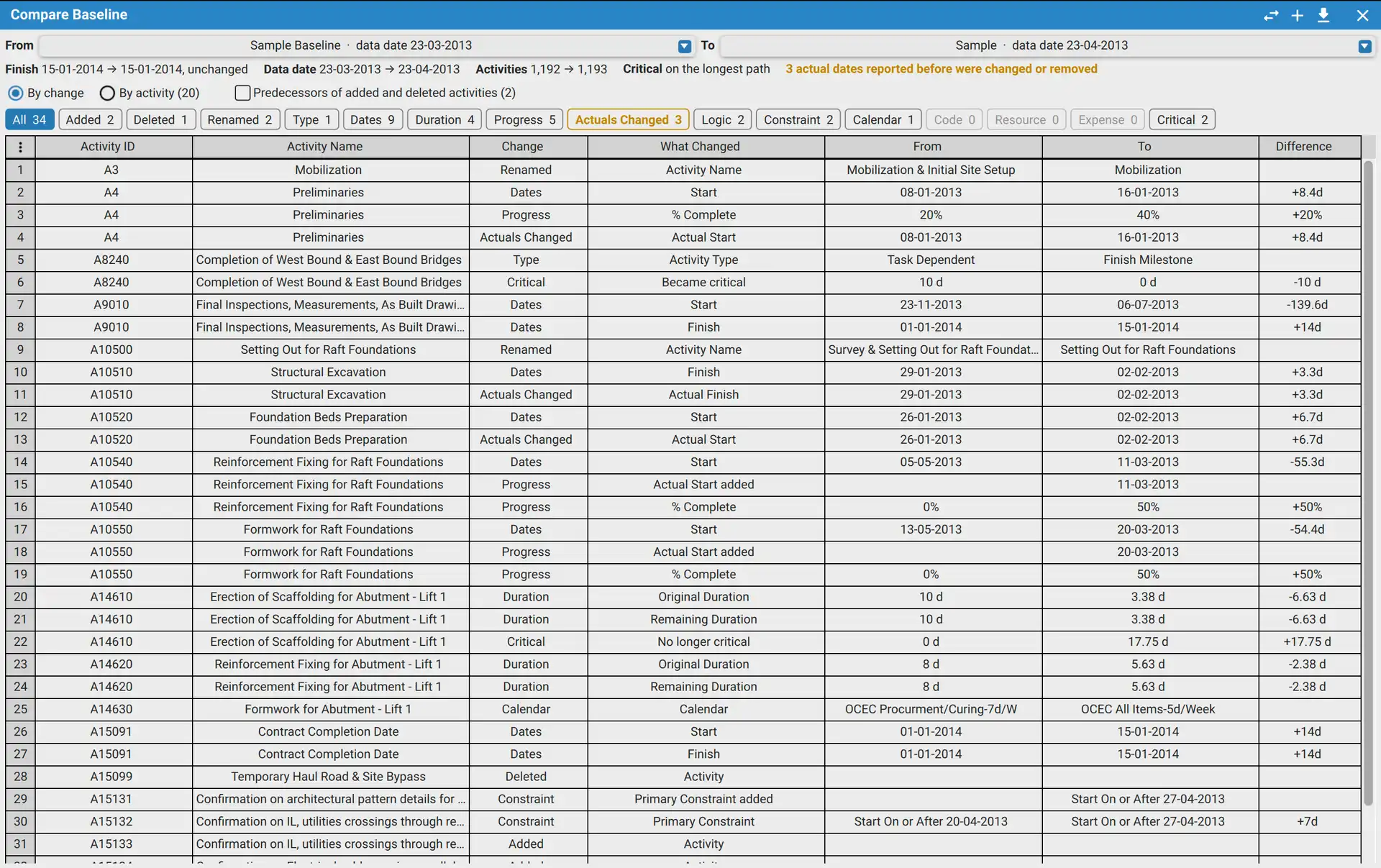
How far the project's finish moved, in calendar days, or in hours when it is less than a day. Then the two data dates, and how many activities each version has. When either project defines critical activities other than by a total float of zero or less, a Critical line says what critical means in each.
Check the amber line first. When an actual start or finish that the earlier version reported was changed or removed in the later one, an amber line says how many. Click it to list them.
Narrow the list to one kind of change
Each kind of change has a button with its count. Click one to list only that kind, and click it again to list everything. A kind with no changes is greyed. Rest the pointer on any button except All to see what that kind covers.
| Kind | A change is |
|---|---|
| Added | An activity only the later version has |
| Deleted | An activity only the earlier version has |
| Renamed | A new activity name, or a new Activity ID when activities are matched by GUID |
| Type | A new activity type, such as a task that became a milestone |
| Dates | A start or a finish that moved |
| Duration | A new original or remaining duration |
| Progress | An actual start or finish reported for the first time, or a new % complete, read by the activity's own % complete type |
| Actuals Changed | An actual date the earlier version reported, now changed or removed. In amber, as a warning |
| Logic | A predecessor added or removed, or a new relationship type or lag. The row is the successor's |
| Constraint | A primary or secondary constraint added, removed or changed, with how far its date moved |
| Calendar | An activity on another calendar, or a calendar with new working time |
| Code | An activity code value added, removed or changed |
| Resource | A resource or role assigned or removed, or new budgeted units or cost |
| Expense | An expense item added or removed, or a new budgeted cost |
| Critical | An activity that became critical, or is no longer critical, by each project's own rule or the one set on the Calculations page of Preferences. A completed activity is never critical |
Read it by change or by activity
Two radio buttons above the kinds switch between the views.
| View | One row for |
|---|---|
| By change | Each change: Activity ID, Activity Name, Change (the kind), What Changed, From, To and Difference |
| By activity | Each activity with a change: how many changes it has and of what kinds, its start, finish, original duration, total float and % complete in each version, and how far its finish moved |
In the view by activity, a kind's button keeps the activities that have a change of that kind. The view, the two projects and the kind the list is narrowed to are kept while the application runs, so the tool opens where you left it.
Predecessors of added and deleted activities are left out. An added activity brings its own predecessors, and they can be most of the logic changes. They are left out of the list, its counts and the Excel file until you tick Predecessors of added and deleted activities, beside the two views, which says how many there are. A relationship between two activities that both versions have is always listed, also when its predecessor is new.
Reading the values
- Difference is the later value less the earlier: calendar days for a date, your time unit for a duration, a float or a lag, and hours for a calendar's working time. It sorts and filters as a number.
- A date that moved less than a day reads in hours, for example -1h. When both dates fall on the same day and your date format has no time, both show their time.
- Something only one version has, such as a predecessor or a constraint, has its other side empty and no Difference, and What Changed says so, for example Predecessor A1000 added.
- On a Critical row, From and To are the activity's total float in each version.
- A change to a calendar itself has the calendar's name in the name column and no Activity ID. Calendar changes come first, then the activities in Activity ID order.
- Every column has a filter, as described in How to Filter and Sort on a Column. The button in the top left corner of the table opens Manage Columns, to hide, show or reorder columns.
Go to an activity
Double click a row to close the tool and select its activity in the Activity view: in the later version when that one is open, otherwise in the earlier one. When neither version is open, a message says so and the tool stays open. When a filter in the activity table hides the activity, a message says that instead.
Save it to Excel
The Excel file holds the whole list, whatever it is narrowed to and whichever view is shown, on three sheets. Summary has the two projects, their data dates, finishes and activity counts, how the activities were matched, and the count of each kind. Changes is the list by change, and Activities the list by activity. Each sheet has a filter on every column, and every difference is a number with its unit named beside it or in its column heading.
How activities are matched
By Activity ID, as in Primavera P6. When both versions keep their GUIDs, as two exports of one P6 project do, the GUID is used instead, and an activity whose ID changed is listed under Renamed.
Microsoft Project tasks are matched by outline number unless the file carries activity IDs of its own. A task moved in the outline, or indented under a new summary, shows as deleted and added.
What is not compared
WBS, notes and user defined fields. Total float, other than an activity becoming critical or no longer being critical. The activity status, which follows its actual dates, and suspend and resume dates, actual units and actual cost. A calendar added to or removed from a project as a whole.
Requirements
Requires an open schedule, a signed in account, and XER Reader Pro or Cloud. With only one project in the schedule, the tool asks for an earlier version to be imported. In shared mode the import button is off.